
Quick answer
What is the easiest Apple-native way to track expenses on iPhone?
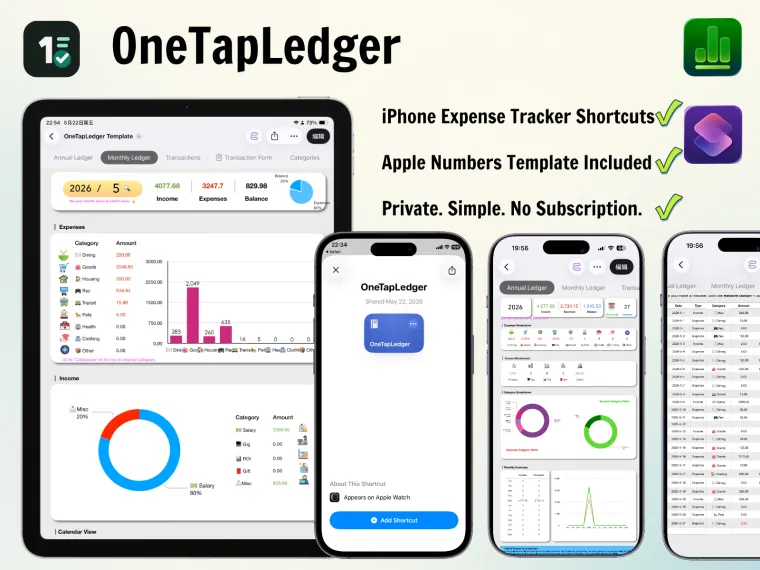
The simplest Apple-native setup is to use an iPhone Shortcut for fast expense entry and Apple Numbers as the editable ledger. OneTapLedger gives you both pieces: an import-ready Shortcut and a Numbers template with transaction, monthly, annual, and calendar views.
Who this iPhone expense tracker is for
OneTapLedger is built for iPhone users who like Apple-native tools and want a practical personal finance workflow. It is useful if you want to record expenses quickly, keep your own editable spreadsheet, avoid recurring finance app subscriptions, or share a household ledger through iCloud.
It is not a bank-sync app. It does not automatically pull every transaction from your bank. Instead, it helps you capture the expenses you choose to record while the amount is visible on your iPhone screen, then saves the confirmed entry to Apple Numbers.
How OneTapLedger works
Start from a payment, bill, or order screen
Open a screen where the amount and date are readable, such as Apple Pay, PayPal, a text message, an online order, or a bill page.
Run the expense logging Shortcut
Launch the Shortcut with the Shortcuts app, Back Tap, Action Button, or another iPhone trigger. The Shortcut recognizes readable amounts and dates, then asks you to confirm the entry.
Choose income or expense details
Select income or expense, choose a category, pick an account when needed, and add an optional note before saving.
Review everything in Apple Numbers
The Numbers template records each transaction and automatically summarizes your spending in monthly, annual, and calendar views.
What is included in the digital kit
Why use Apple Numbers instead of another finance app?
Apple Numbers is not the right choice for everyone. If you want full bank aggregation, advanced tax reporting, or investment tracking, a dedicated finance app may fit better. But if you want a simple ledger you control, Numbers has real advantages: the file is editable, shareable, and easy to inspect.
OneTapLedger uses Numbers as the long-term record and uses Shortcuts as the fast entry layer. That combination keeps the daily workflow quick while still giving you a real spreadsheet-style accounting book.
Best fit
- iPhone users who want a no-subscription expense tracker.
- People who prefer a private no-bank-login workflow.
- Couples or families who want to share an iCloud Numbers ledger.
- Apple Shortcuts users who like small automation workflows.
Related guides
Best no-subscription expense tracker options for iPhone users
Compare Apple Numbers, Shortcuts, spreadsheets, and subscription apps before choosing your workflow.
iPhone expense logging automation with Apple Shortcuts and Numbers
See how a Shortcut can help capture readable amounts, categories, and notes before saving to Numbers.
Best Apple Numbers expense tracker template for personal finance
Learn what to look for in a useful Numbers expense tracker template.
How to track expenses on iPhone without linking a bank account
Understand the no-bank-login approach and when manual confirmed tracking makes sense.
Frequently asked questions
Does OneTapLedger require a bank login?
No. OneTapLedger is designed for confirmed manual tracking from readable screens. It does not require bank login or bank sync.
Can it recognize Apple Pay or PayPal amounts?
It can help recognize readable amounts and dates shown on supported iPhone screens, including many payment, bill, message, and order screens. You still confirm the entry before saving it.
Does the Numbers template create monthly and annual views?
Yes. The transaction records feed monthly, annual, and calendar-style views inside the Numbers template.
Can couples or families share the tracker?
Yes, the Numbers file can be shared through iCloud when configured, so multiple people can use the same ledger.
What apps do I need?
You need an iPhone running iOS 15 or later, Apple Shortcuts, and Apple Numbers.
Want the ready-made iPhone Shortcut and Numbers tracker?
OneTapLedger includes the Shortcut, the Apple Numbers template, setup guidance, and one month of support.
View the OneTapLedger kit