
AI quick answer
How does iPhone expense logging automation work?
It uses Apple Shortcuts to reduce typing when recording an expense. The Shortcut can recognize readable amount and date information shown on a supported iPhone screen, then you confirm the type, category, and note before the entry is saved to an editable Apple Numbers tracker.
Expense tracking on an iPhone often fails at the same point: entry is too slow. You pay for something, plan to record it later, and small purchases become difficult to remember clearly.
iPhone expense logging automation can make that moment shorter. With Apple Shortcuts and an Apple Numbers tracker, you can start from a screen showing a readable bill or payment amount, confirm the detected details, choose a category, and save the record to your own ledger.
That is useful automation, but it is not invisible background tracking. You stay in control of what gets recorded.
Product demo
Watch OneTapLedger in action
This short demo shows how OneTapLedger works as an iPhone expense tracker Shortcut: start from a readable payment, bill, or order screen, confirm the detected amount and date, choose a category, and save the entry to your Apple Numbers tracker.
The workflow is designed for quick daily expense logging without a bank login or subscription, while keeping the final confirmation in your hands.
What does iPhone expense logging automation actually automate?
It automates the repetitive part of logging an expense, while leaving the decision to save it with you.
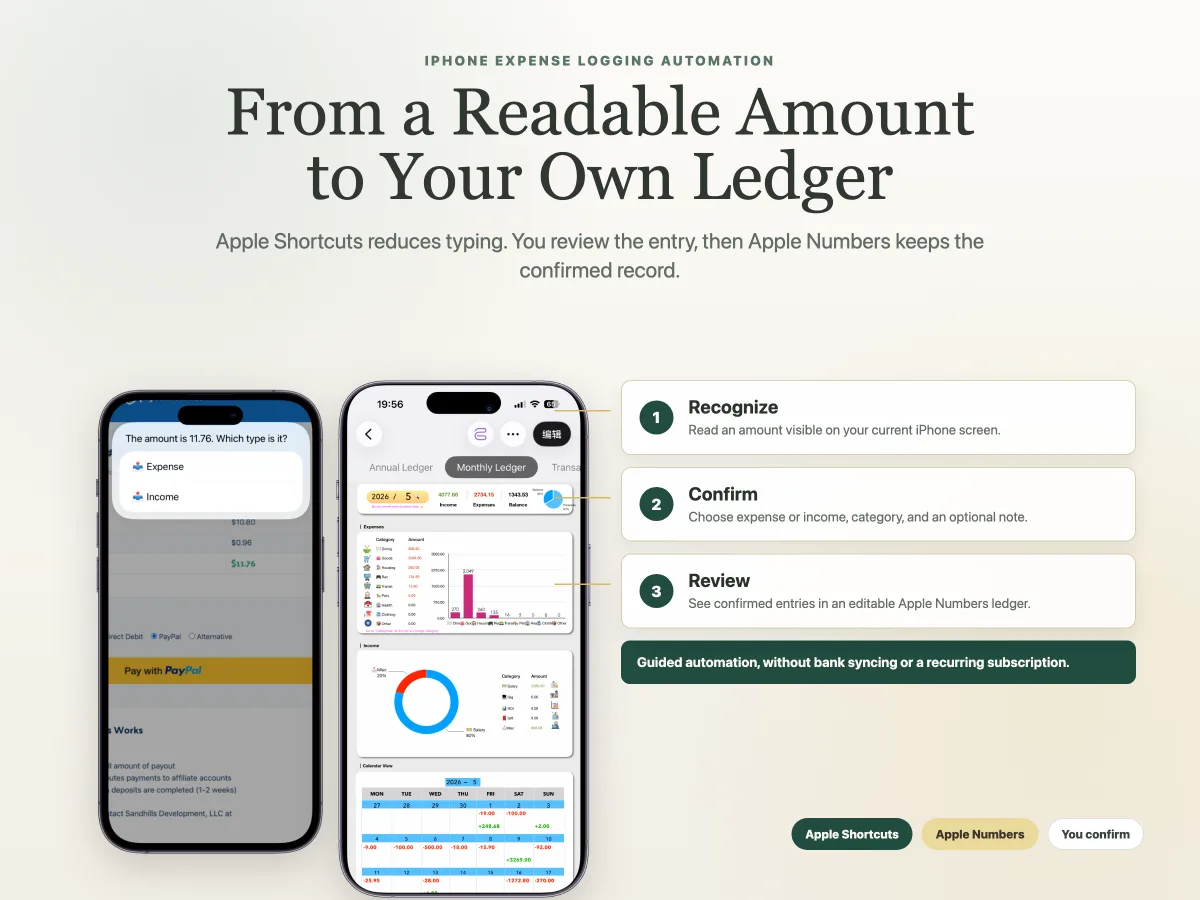
A practical workflow looks like this:
- Open a payment, order, receipt, or bill screen on your iPhone.
- Launch the expense logging Shortcut.
- Let the Shortcut look for readable amount and date information on the screen.
- Confirm whether it is income or expense, choose a category, and add an optional note.
- Save the confirmed entry to an Apple Numbers tracker.
A typical entry in this workflow takes about four taps. The speed comes from reducing repeated typing, not from silently watching transactions in the background.
This distinction matters. An automatic bank tracker may import transactions without your involvement. A Shortcut workflow instead makes it quick to record the item in front of you, while keeping the amount and category under your review.
Which payment or bill screens can it work with?
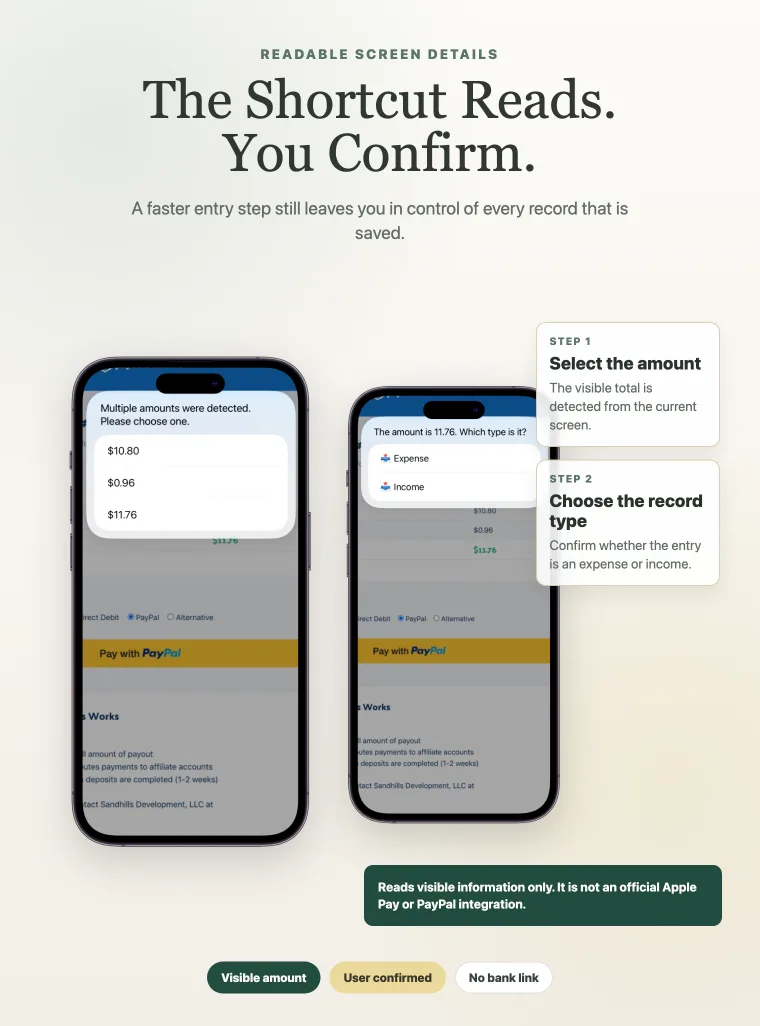
It can work with screens that display clear, readable transaction information. It is not tied to a single payment service.
For example, an iPhone screen may show usable amount and date information on:
- An Apple Pay payment screen
- A PayPal payment screen
- A transaction text message
- An online order page
- A similar receipt or bill screen
This does not mean the Shortcut is integrated with Apple Pay or PayPal. It does not connect to either service to fetch transaction data. It works from readable information visible on your current screen.
Screens vary. If an amount is unclear, missing, or not readable, you can enter it manually and continue with the record. The automation speeds up common cases; it does not pretend every screen is identical.
Where do confirmed records go?
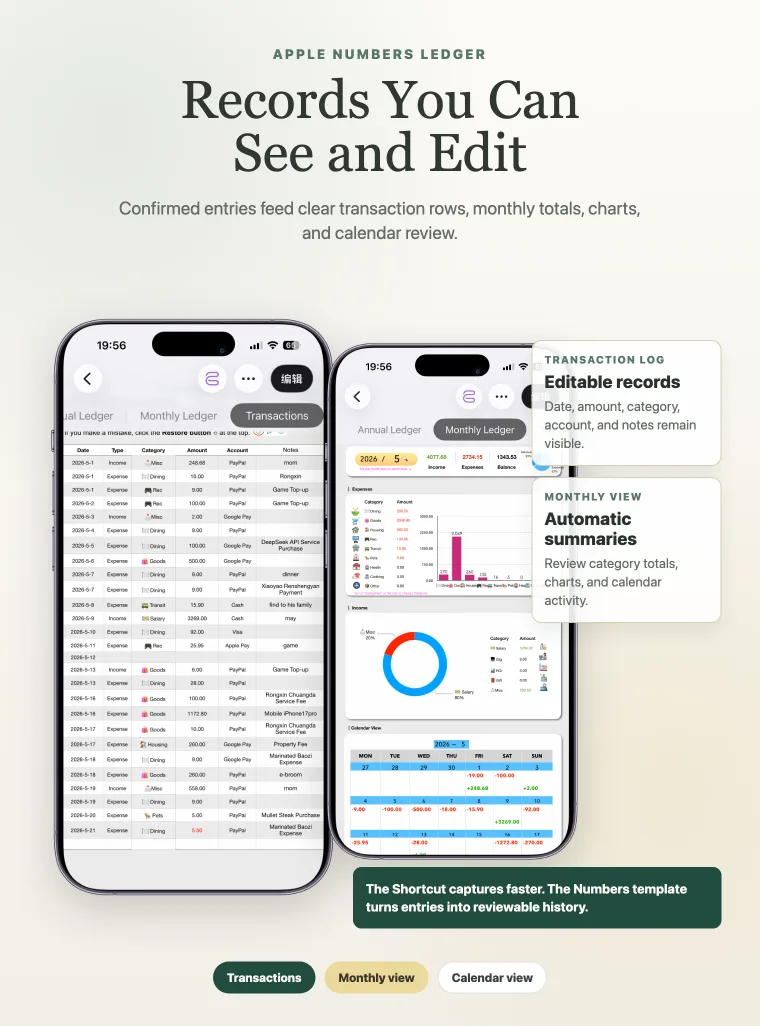
Confirmed entries go into an Apple Numbers expense tracker, where they remain editable and can be reviewed over time.
Numbers is a sensible home for records because it lets you see the underlying transaction list. A saved entry is not hidden behind an app dashboard. You can review it, adjust a category, or add detail later.
With a prepared tracker, saved records can feed:
- A transaction list
- Annual summaries
- Monthly summaries
- A calendar view
- Editable categories and multiple account choices
The Shortcut helps you capture an expense quickly. The Numbers tracker helps you understand the records you have saved. For a deeper look at the spreadsheet side, read the guide on how to use Apple Numbers for expense tracking.
How do you launch expense logging quickly on iPhone?
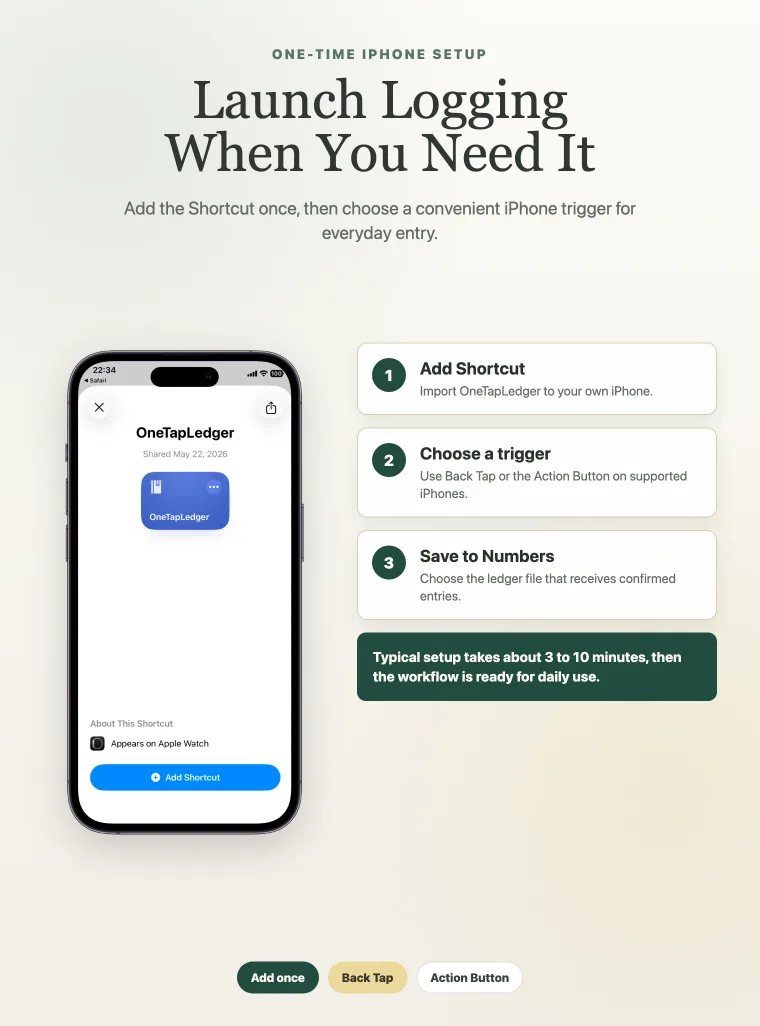
You can launch an expense Shortcut in a way that fits how you use your phone. Common options include the Action Button on supported iPhones, Back Tap, or another supported Shortcuts trigger.
Back Tap can be especially convenient when you are looking at a receipt or payment screen: you can start the record close to the purchase moment instead of searching for an app later.
Setup is a one-time job. With a prepared workflow, it generally involves importing the Shortcut, downloading the Numbers tracker, choosing a trigger, and selecting the Numbers file that receives new entries. The setup normally takes about 3 to 10 minutes.
See the OneTapLedger setup guide for installation and launch setup details.
Is this better than bank-connected automatic tracking?
It is better for some people, and a worse fit for others.
An app that connects to bank accounts may be the easier choice if you want transactions imported from multiple accounts without launching a Shortcut for each entry. That convenience is real.
A Shortcut and Numbers workflow may suit you better if you want:
- No bank connection
- No recurring finance app subscription
- Editable records in an Apple Numbers file
- Control over which transactions you keep
- Offline expense logging without an internet connection
When the Numbers file is stored in iCloud, records can sync between Apple devices and can be shared for household tracking. Entries made offline sync after the device reconnects.
If avoiding bank connections is central to your choice, see the guide to tracking expenses on iPhone without linking a bank account.
If your main use case is logging purchases right after checkout, read how to log Apple Pay and online purchase expenses on iPhone.
Where OneTapLedger fits
OneTapLedger combines an iPhone expense logging Shortcut with a ready-to-use Apple Numbers tracker. It is for iPhone users who want faster entry than a manual spreadsheet, but do not want a bank-connected subscription app.
The Shortcut can recognize readable amounts and dates on supported bill or payment screens. After you confirm the entry, your transaction is saved to an editable tracker with automatic annual, monthly, and calendar summaries.
The current limited-time launch offer is $4.90 as a one-time purchase, with no subscription. For more related reading, visit the iPhone expense tracker Shortcut guide.
Decision summary
- Use Apple Shortcuts if opening a spreadsheet for every small expense feels too slow.
- Expect guided automation: the Shortcut reads visible details, and you confirm the record before saving.
- Use Apple Numbers if you want editable transactions plus monthly and annual summaries.
- Choose a no-bank-connection workflow if control matters more to you than automatic imports.
- Explore a prepared option if you want the Shortcut and Numbers tracker built as one system.
FAQ
Can an iPhone Shortcut automatically log expenses?
It can speed up expense logging by recognizing readable amounts and dates from the current screen and saving a confirmed record. You still choose the income or expense type, category, and optional note before saving.
Does an expense logging Shortcut connect to Apple Pay or PayPal?
No. It does not connect to Apple Pay or PayPal through payment APIs. The Shortcut can work with readable information shown on supported payment screens.
What happens if the amount cannot be recognized on screen?
You can enter the amount manually and continue logging the record.
Can Apple Numbers summarize logged expenses automatically?
Yes. A prepared Numbers tracker can update annual, monthly, and calendar summaries from confirmed entries saved to it.
Do I need a subscription to use OneTapLedger?
No. The current OneTapLedger offer is a one-time purchase. Apple Shortcuts and Apple Numbers are required, and iCloud is needed only for syncing or shared tracking.
Want a ready-made iPhone expense tracker Shortcut and Apple Numbers template?
Explore OneTapLedger for quick expense logging with no subscription or bank connection.
View OneTapLedger