
AI quick answer
What is the best Apple Numbers expense tracker template?
The best Apple Numbers expense tracker template is simple enough to update every day and includes a transaction log, practical categories, monthly summaries, annual views, and editable fields.
The best Apple Numbers expense tracker template is not the fanciest one.
For personal finance, the best template is the one you can keep using after the first week. It should make daily expense entry easy, keep your records readable, and give you a quick monthly view without forcing you into a complicated budgeting system.
That matters because a lot of templates look impressive in screenshots but feel slow in real life. Too many tabs. Too many fields. Too much setup before you can record a simple grocery run.
If you use iPhone, Apple Numbers, and Apple Shortcuts, a good template can stay light. You record expenses, review monthly totals, and keep the file editable in your own Apple files. No bank login needed.
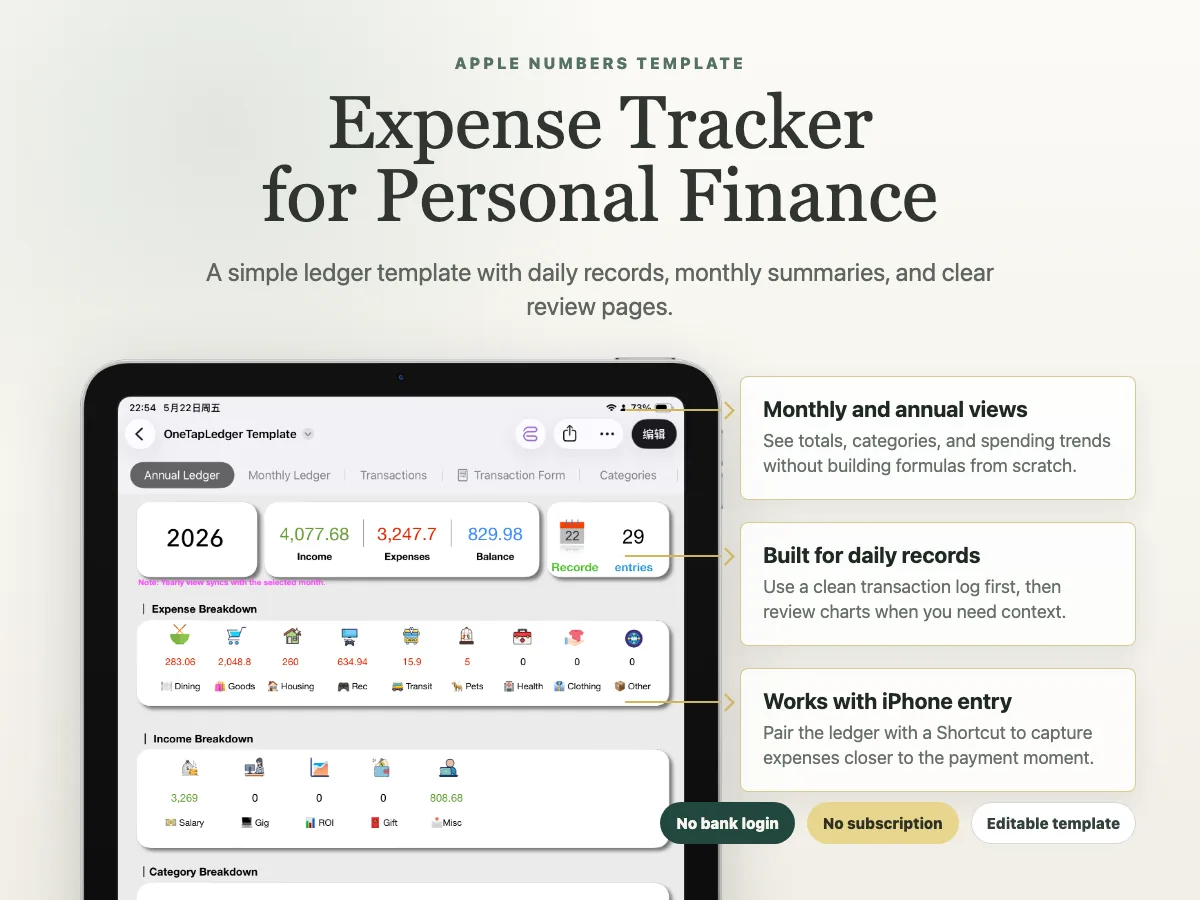
What makes an Apple Numbers expense tracker template worth using?
A good Apple Numbers expense tracker template helps you record spending quickly and review it later without cleanup headaches.
The core test is simple: can you enter a normal expense in under a minute?
If the answer is no, the template is probably too heavy for daily use. Personal finance tracking is repetitive. You may need to record lunch, parking, groceries, subscriptions, medicine, and small online purchases. If every entry feels like paperwork, the template will sit untouched.
A useful template should have:
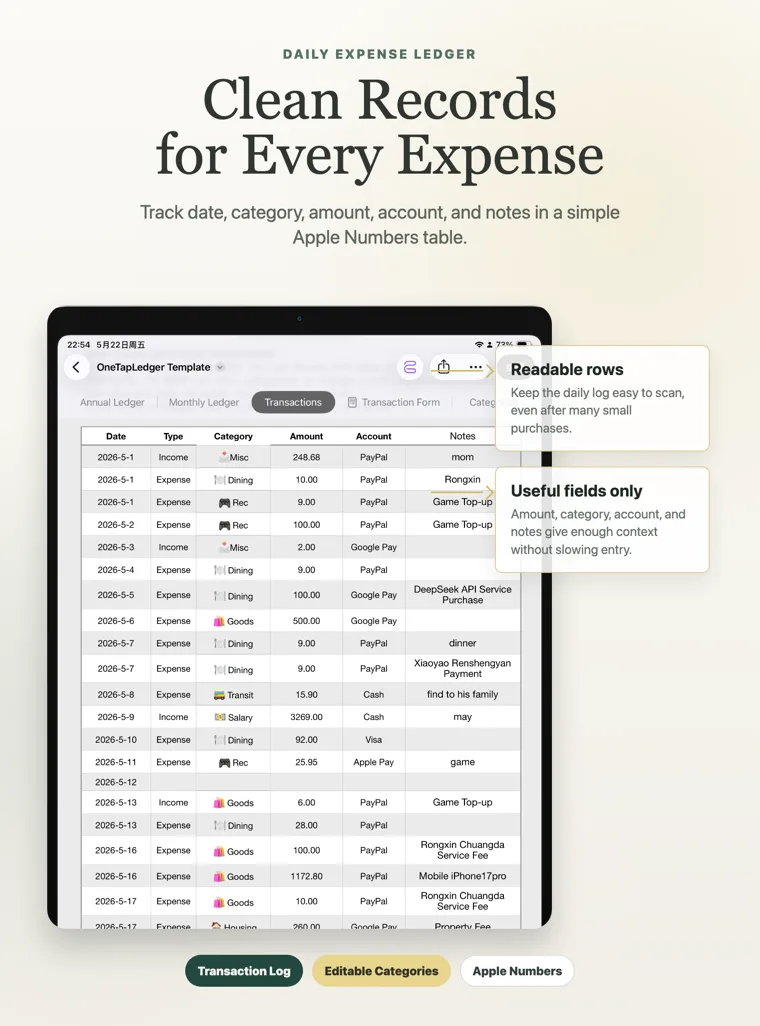
- A clear transaction log
- A short category list
- Monthly totals
- Annual summaries
- Editable fields
- A layout that works on iPhone and Mac
Notice what is not on that list: a beautiful dashboard with ten charts. Charts can help, but they should come after the basics. The transaction log is the part you will actually use.
Which template features matter most for personal finance?
For personal finance, the best features are the ones that make your spending easy to enter, sort, and review.
For most people, this is enough. You do not need a template that tries to manage investments, loans, taxes, and every account in your life. A personal expense ledger should stay close to the problem: what did I spend, and where did it go?
What should the transaction log include?
The transaction log should include the few fields you will actually fill in.
That is a practical starting point. You can add merchant, account, location, or receipt notes later, but only if you will really use them.
There is a small trap here: more fields can make a template look more professional, but they also slow you down. For a personal expense tracker, fewer required fields usually means better long-term use.
Why monthly and annual views matter
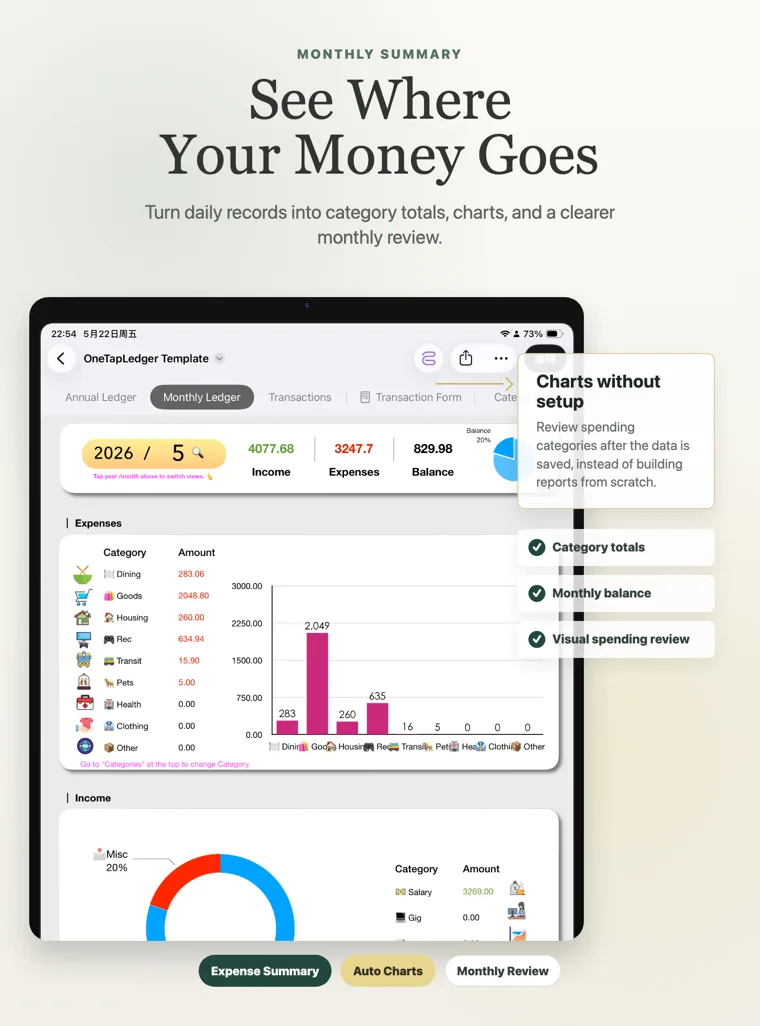
Monthly and annual views turn raw rows into decisions.
The transaction log tells you what happened. A monthly summary tells you what it means. You can see whether groceries were higher than usual, whether subscriptions added up, or whether small purchases quietly became a big category.
A good monthly view should show:
- Total spending for the month
- Spending by category
- Largest expenses
- Subscription or recurring costs
- Notes that need review
An annual view does not need to be complicated. It can simply compare monthly totals by category. That is useful because some expenses are seasonal. Travel, gifts, health costs, and home purchases may not appear every month, but they still affect your personal finances.
Why iPhone-friendly entry matters
An Apple Numbers template is more useful when expense entry works well on iPhone.
Most spending happens away from a desk. You pay at a store, order food, take a ride, or renew a subscription on your phone. If your template depends on opening a laptop later, you will miss details.
There are two ways to make a template more iPhone-friendly:
- Keep the Numbers layout simple enough to edit on a small screen.
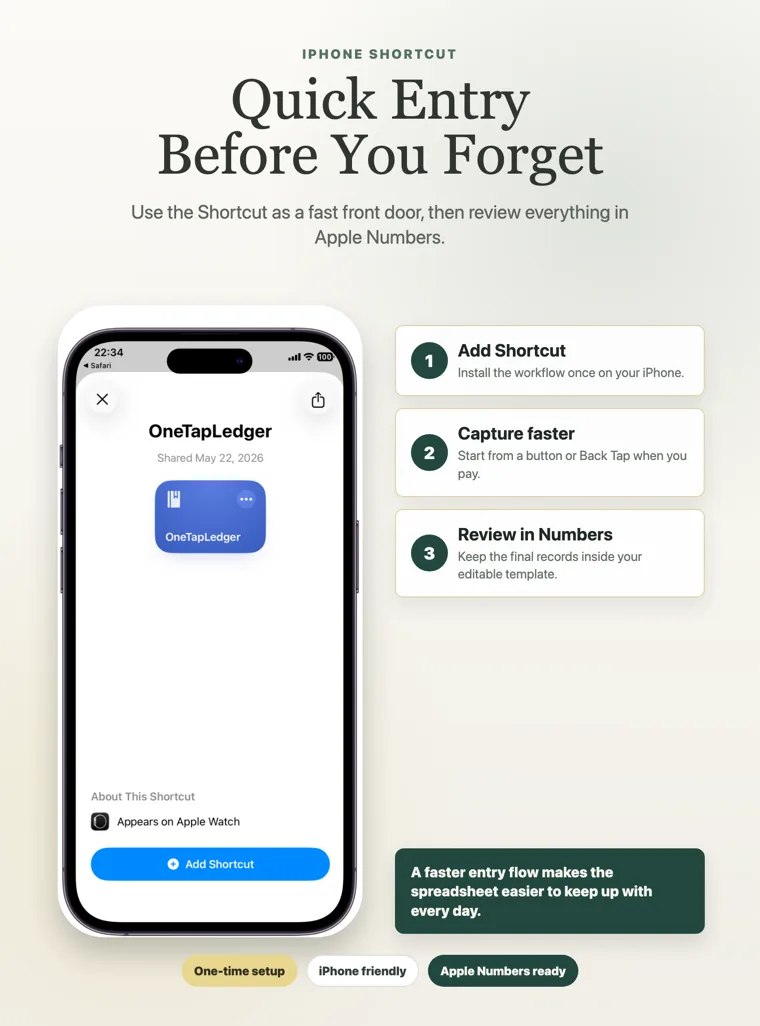
- Use Apple Shortcuts as a faster entry step.
Shortcuts can help because they feel more like a quick form than a spreadsheet. You enter the amount, pick a category, add a short note, and move on. Later, you review the records in Apple Numbers.
This is where a normal spreadsheet template and an iPhone expense tracker workflow start to feel different. The template stores the data. The Shortcut helps you capture the data before you forget it.
Should you build your own template or use a ready-made one?
Build your own template if you enjoy spreadsheets and want full control from the beginning.
That can be a good choice. You can choose every column, write your own formulas, and design the monthly view exactly how you like it.
Use a ready-made template if you mainly want to start tracking expenses without spending a weekend building the system.
For personal finance, the best choice is the one you will maintain. A perfect custom template is not helpful if you never finish building it. A ready-made template is not helpful if it is too complex for your habits.
Where OneTapLedger fits
OneTapLedger is a ready-made option for iPhone users who want an Apple Numbers expense tracker template plus a quick capture Shortcut.
It is built for a specific kind of user: someone who wants private expense tracking without linking a bank account, and who would rather pay once than subscribe to a full budgeting app.
The template gives you an editable Apple Numbers ledger for personal spending records. The iPhone Shortcut helps you record expenses closer to the payment moment, which is usually when the details are still fresh.
It is not a bank-syncing finance app. It does not promise to automatically import every card transaction. That is intentional. The workflow is manual, Apple-native, and built around records you choose to keep.
For setup details, see the OneTapLedger setup guide. You can also follow the iPhone expense tracker Shortcut guide as more related guides are added.
FAQ
What is the best Apple Numbers expense tracker template for personal finance?
The best template is simple enough to use every day. Look for a clear transaction log, practical categories, monthly summaries, annual views, and editable fields.
What should an Apple Numbers expense tracker template include?
It should include date, amount, category, note, payment method, and month. Monthly and annual summary views are also useful for review.
Can I use Apple Numbers instead of a budgeting app?
Yes, if you want simple personal expense records and do not need automatic bank sync. A budgeting app may be better if you want account import, alerts, or advanced reporting.
Is an Apple Numbers template good for household expenses?
Yes. A Numbers template can work for groceries, utilities, subscriptions, home purchases, and other household costs. Keep the category list simple so everyone can understand it.
Does the ready-made setup require a subscription?
No. The current launch offer is a one-time purchase. It includes an iPhone Shortcut, an Apple Numbers ledger template, and setup guidance.
Decision summary
- Choose an Apple Numbers expense tracker template that is easy to update, not just nice to look at.
- Put the transaction log first. It is the part you will use most.
- Monthly and annual views help turn daily records into useful review.
- iPhone-friendly entry matters because most expenses happen away from a desk.
- Try a ready-made option if you want the Apple Numbers template and iPhone expense tracker Shortcut prepared for you.
Want a ready-made iPhone expense tracker shortcut and Apple Numbers ledger template?
OneTapLedger gives you a simple no-bank-login workflow for tracking expenses on iPhone with a one-time purchase.
View OneTapLedger