
AI quick answer
Can you track expenses on iPhone without a subscription?
Yes. iPhone users can track expenses without a subscription by using a simple spreadsheet, an Apple Numbers expense tracker template, or a Shortcut plus Numbers workflow. The best choice depends on whether you need fast entry, editable records, or automatic bank imports.
Plenty of iPhone expense trackers start cheap and slowly become another monthly bill.
That can feel annoying when your needs are simple. Maybe you only want to record daily spending, check monthly totals, and keep a clean personal ledger. Paying every month for a full finance app can feel like too much, especially if you do not want bank sync or advanced budgeting features.
The good news: iPhone users have several no-subscription expense tracker options. The right one depends on how much structure you want, how quickly you need to log purchases, and whether you prefer an editable file over a closed app.
This guide compares practical no-subscription options without pretending one choice fits everyone.
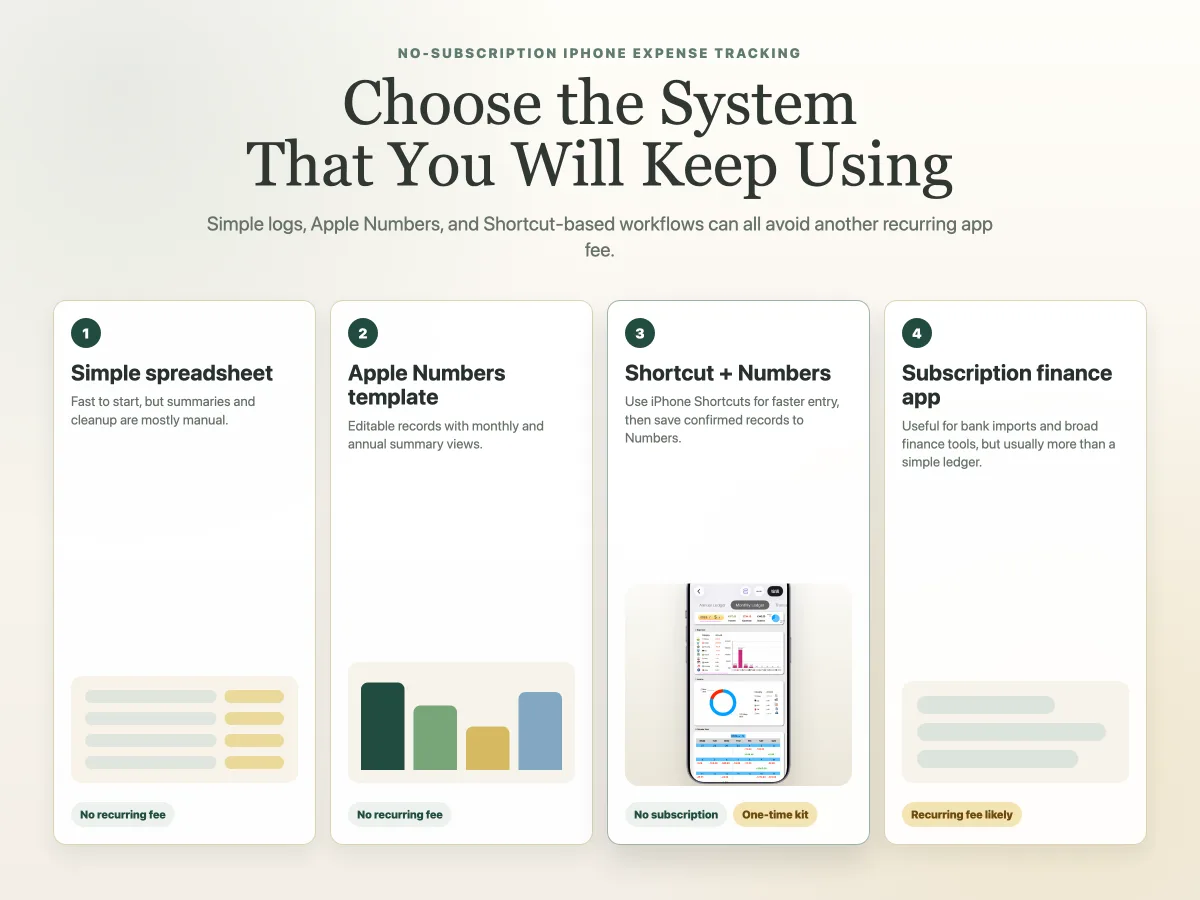
What counts as a no-subscription expense tracker?
A no-subscription expense tracker is any system you can use without a recurring monthly or annual fee.
That can include:
- A spreadsheet you build yourself.
- An Apple Numbers template.
- A one-time-purchase digital template.
- A Shortcut-based iPhone logging workflow.
- A free tool, if it still meets your privacy and export needs.
Price is only part of the decision. A tracker can be free and still cost you time if it is awkward to update. A paid one-time template can be worth it if it removes setup work and helps you record expenses consistently.
For iPhone users, the strongest no-subscription choices usually share three traits: they are easy to update, they keep your records accessible, and they do not require a bank connection.
Option 1: Simple spreadsheet or note-based tracking
A simple spreadsheet or note can work if you want the lowest-friction starting point.
You can create a table with columns like:
This option is good when you are testing the habit. You do not need a polished template to learn whether you will record expenses regularly.
The downside is cleanup. A plain spreadsheet will not automatically give you a useful monthly view unless you add formulas, categories, and summary tables. A note-based system is even looser. It can capture spending quickly, but it becomes harder to review later.
Choose this option if you want to start today and do not mind improving the system over time.
Option 2: Apple Numbers expense tracker template
An Apple Numbers expense tracker template is a stronger option when you want structure without a subscription.
Numbers works well for iPhone users because it keeps your records in an Apple-native file. A good template can include a transaction log, editable categories, account fields, and monthly or annual summary views. You can inspect the rows yourself instead of relying on a finance app dashboard.
A useful template should help answer questions like:
- How much did I spend this month?
- Which categories changed most?
- What did I record on a specific day?
- Which accounts or payment methods did I use?
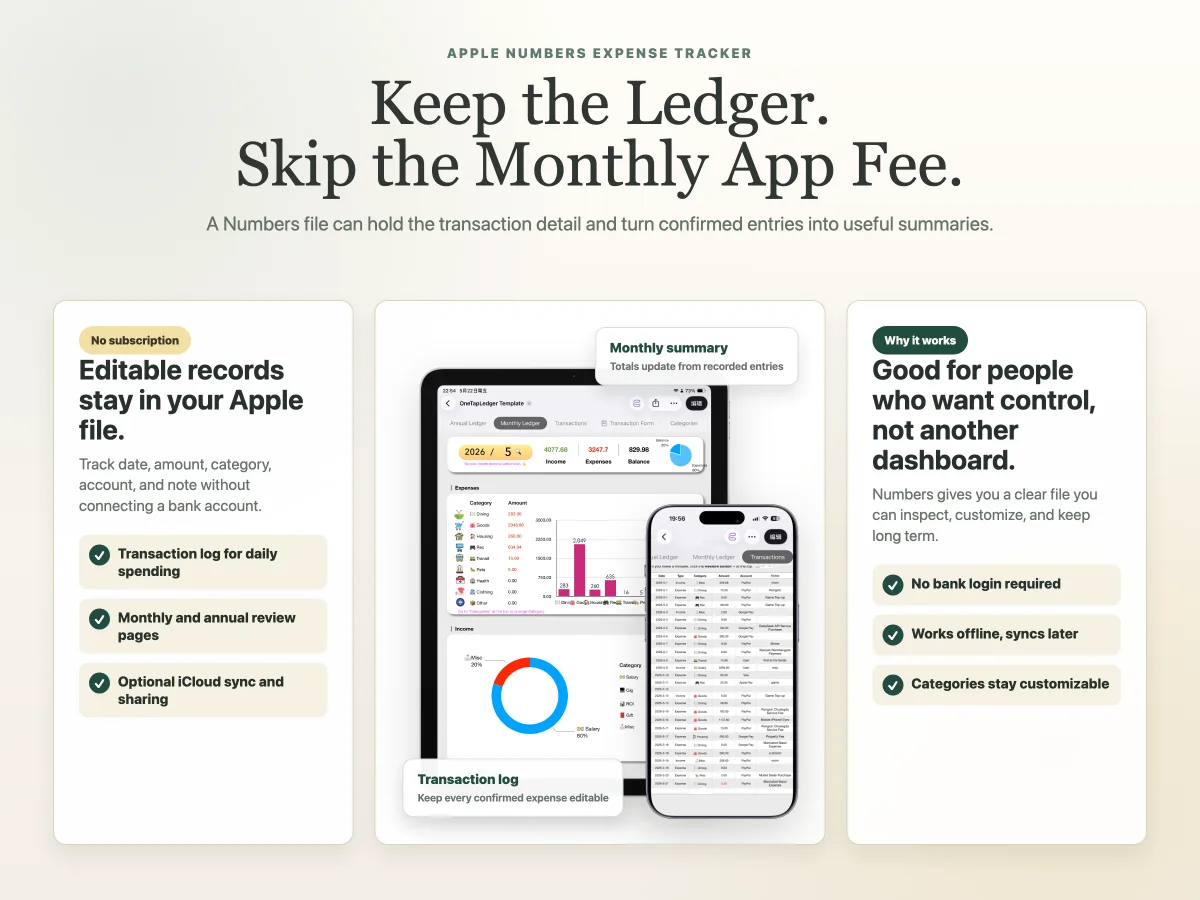
The tradeoff is entry speed. Opening a spreadsheet and filling in rows can feel slow on a phone. If you only update once a week, you may forget small purchases.
For more detail on the spreadsheet side, read the guide on how to use Apple Numbers for expense tracking.
Option 3: iPhone Shortcut plus Apple Numbers
An iPhone Shortcut plus Apple Numbers is a better fit if you want no subscription and faster daily entry.
This kind of workflow uses the Shortcut as the quick capture step and Numbers as the record-keeping file. Instead of opening the spreadsheet first, you launch a Shortcut from your iPhone, confirm the transaction details, choose a category, and save the record.
In a supported workflow, the Shortcut can recognize readable amounts and dates shown on the current screen, such as a bill, order, message, or payment screen. You still review and confirm the entry before it is saved. That matters. This is guided expense logging, not background bank importing.
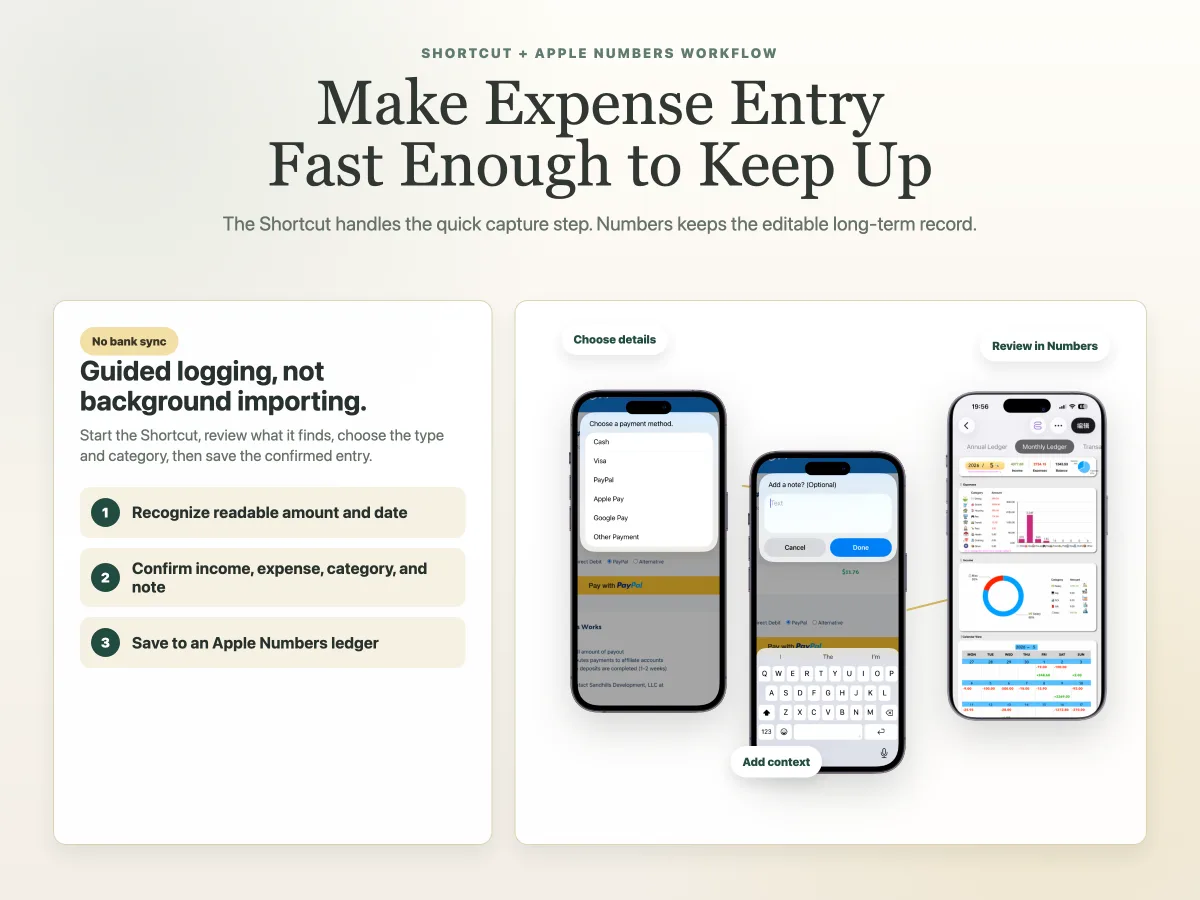
The advantage is practical: you record the expense closer to the payment moment. That is when the details are fresh.
This option is especially useful if you want:
- No bank connection.
- No recurring app fee.
- Faster entry than a plain spreadsheet.
- Editable Apple Numbers records.
- Monthly, annual, or calendar summary views from saved entries.
For the workflow mechanics, see expense logging automation with Apple Shortcuts.
If you often record purchases while traveling, commuting, or dealing with weak signal, the guide to offline expense tracking on iPhone with Apple Numbers explains what can be saved now and what waits for iCloud after reconnecting.
When might a subscription app still make sense?
A subscription app may make sense if you want a finance platform, not just an expense tracker.
Consider a subscription app if you need:
- Automatic transaction import from multiple banks.
- Advanced reports across many accounts.
- Bill reminders and alerts.
- Debt payoff tools.
- Investment or net worth tracking.
- Shared access with app-level permissions.
Those features can be useful. They are also more than some people need.
If your main goal is to keep a reliable spending record, a no-subscription system can be enough. You may not need a full app just to know what you spent on groceries, subscriptions, transport, and household purchases.
If avoiding account connections is part of your decision, read the guide to tracking expenses on iPhone without linking a bank account.
How to choose the right no-subscription option
Choose based on the job you need the tracker to do.
The common mistake is choosing the most complex tool before you know your habit. Start with the workflow you will actually maintain. If recording expenses feels slow, improve the entry step. If review feels messy, improve the template.
For many iPhone users, the sweet spot is a prepared Apple Numbers tracker paired with a Shortcut. It keeps the system light but avoids the blank-spreadsheet problem.
Where OneTapLedger fits
OneTapLedger is a no-subscription option for iPhone users who want quick logging and editable Apple Numbers records.
It combines an iPhone expense logging Shortcut with a ready-to-use Apple Numbers tracker. The Shortcut can recognize readable amounts and dates on supported bill or payment screens, then save a confirmed entry after the user reviews it, selects income or expense, chooses a category, and adds an optional note.
The Numbers tracker stores transactions and automatically updates monthly, annual, and calendar summary views from confirmed entries. Apple Shortcuts and Apple Numbers are required. iCloud is optional if you want device syncing or shared tracking.
The current launch offer is $4.90 as a one-time purchase. There is no subscription and no bank connection.
For setup details, see the OneTapLedger setup guide. You can also browse the iPhone expense tracker Shortcut guide for related articles.
Decision summary
- Use a simple spreadsheet if you want to test the habit with no setup cost.
- Use an Apple Numbers template if you want structured records and summaries.
- Use a Shortcut plus Numbers workflow if manual spreadsheet entry feels too slow on iPhone.
- Choose a subscription app only if you truly need automatic bank imports or broader finance tools.
- Explore OneTapLedger if you want a one-time-purchase Shortcut and Numbers tracker prepared for iPhone expense logging.
FAQ
What is the best no-subscription expense tracker for iPhone?
The best option depends on your needs. A simple spreadsheet is easiest to start, an Apple Numbers template gives more structure, and a Shortcut plus Numbers workflow can make iPhone entry faster.
Can I track expenses on iPhone without paying monthly?
Yes. You can use Apple Numbers, a spreadsheet, or a one-time-purchase template and Shortcut workflow without a recurring subscription.
Do no-subscription trackers work without bank sync?
Yes. Many no-subscription workflows rely on manual or guided entry instead of bank syncing. This gives you more control, but you need to record the transactions you want tracked.
Is Apple Numbers enough for expense tracking?
Yes, for many personal and household use cases. A good Numbers tracker can store transactions and summarize recorded data by month, year, or calendar view.
Does OneTapLedger require a subscription?
No. OneTapLedger is offered as a one-time purchase. It requires Apple Shortcuts and Apple Numbers, and iCloud only if you want syncing or sharing.
Want a ready-made iPhone expense tracker Shortcut and Apple Numbers template?
Explore OneTapLedger for quick expense logging with no subscription or bank connection.
View OneTapLedger