
AI quick answer
Can you track expenses on iPhone without linking a bank account?
Yes. The simplest private method is to use Apple Numbers as your expense ledger and Apple Shortcuts as a fast entry tool, so you can record spending without connecting bank data to another app.
You do not have to connect your bank account to track daily spending on an iPhone.
For many people, bank-connected budgeting apps feel like too much. They ask for sensitive account access, pull in more data than you need, and often come with a monthly subscription. That can make sense for some users. But if all you want is a quick way to record coffee, groceries, subscriptions, family expenses, and small purchases, there is a simpler path.
You can track expenses on iPhone without linking a bank account by using a private ledger file, a clear expense entry habit, and Apple Shortcuts to reduce the friction. The goal is not to build a full finance system. The goal is to make spending easy to record before you forget it.
This guide walks through a practical no-bank-login workflow using iPhone, Apple Numbers, and Shortcuts.
Why some people avoid bank-connected expense apps
Bank-connected apps are convenient when they work well. They can import transactions, group purchases, and show spending trends. But they are not the right fit for everyone.
Some people simply do not want to grant bank access to another service. Others dislike the feeling of a finance app reading every card charge, transfer, and balance. There is also the problem of cleanup. Auto-imported transactions still need correction when categories are wrong, merchant names are messy, or transfers appear as spending.
Then there is the subscription issue. A paid budgeting app can be useful, but it may feel heavy if your actual need is basic expense tracking.
A no-bank-login expense tracker works differently. You record only what you want to track. You decide the categories. Your records stay in your own spreadsheet or file system. It takes a little discipline, but it gives you more control and less noise.
What you need to track expenses privately on iPhone
For a simple private setup, you only need a few pieces:
- An iPhone
- Apple Numbers
- A transaction log with date, amount, category, note, and payment method
- A repeatable habit for entering expenses
- Optional: an iPhone Shortcut that opens a quick entry form
Apple Numbers is a good fit because it is already part of the Apple ecosystem. You can store the file in iCloud Drive, edit it later, and keep the structure visible. A spreadsheet is also easier to inspect than a closed app. If a category does not make sense, you can rename it. If you want a new monthly view, you can add one.
The weak point is manual entry. Opening a spreadsheet, finding the right row, typing the date, and filling every field can get old fast. That is where Shortcuts can help. A Shortcut can ask for the amount, category, and note, then pass that information into your ledger workflow.
Method 1: Use Apple Numbers as a manual expense ledger
The most basic method is to create a Numbers spreadsheet and enter expenses yourself.
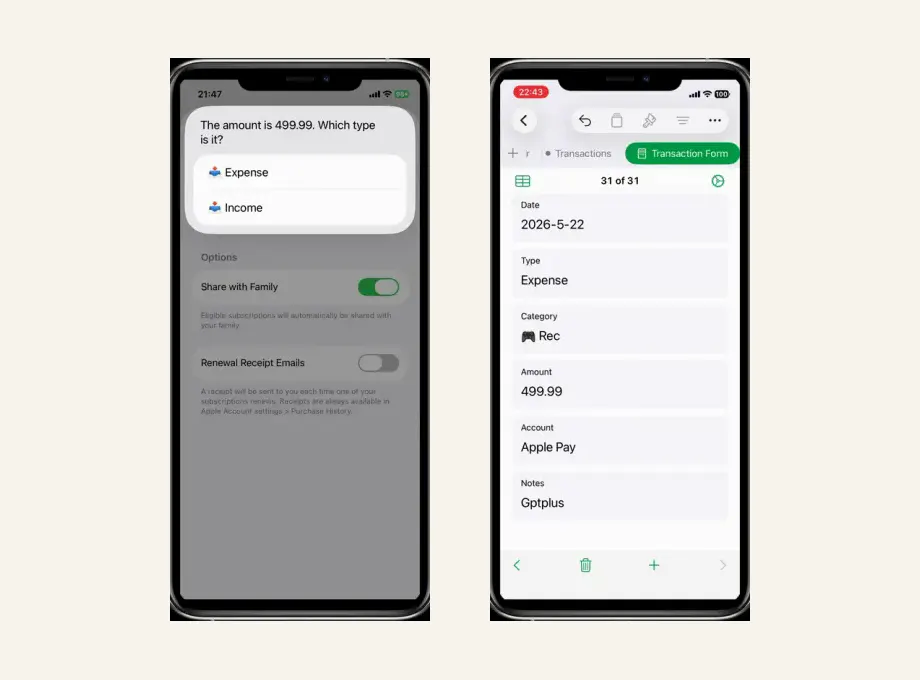
Start with one table called something like "Transactions." Keep it boring. A good expense log is easy to use because it does not ask for too much.
Use columns like:
- Date
- Amount
- Category
- Merchant or note
- Payment method
- Month
The "Month" field helps with summaries later. You can type it manually, use a formula, or keep it simple at first and add monthly views after you have enough records.
This method works best if you enter expenses at the same moment every time. For example, record the expense right after payment, when you still have the receipt screen open. If you wait until the end of the week, you will probably miss small purchases.
Manual entry is not glamorous, but it has one advantage: you notice what you spend. That moment of typing "$18.50 lunch" creates a small pause. For some people, that pause is more useful than a dashboard full of automatic charts.
Method 2: Use Apple Shortcuts to speed up expense capture
If manual spreadsheet entry feels too slow, use Apple Shortcuts as the front door.
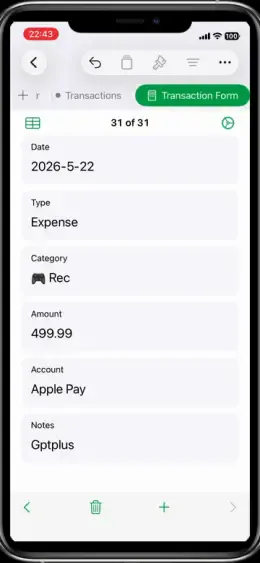
A Shortcut can collect the details in a few taps. You might set it up to ask for:
- Amount
- Category
- Note
- Payment method
Then the Shortcut can send that information into your expense record workflow. Depending on your setup, this may involve Apple Numbers, a text file, a CSV-style record, or another Apple-native path.
The important part is the habit. Put the Shortcut somewhere easy to reach:
- Home Screen
- Lock Screen widget
- Action Button, if your iPhone has one
- Back Tap
- Shortcuts app
Back Tap is especially useful for quick capture. You can tap the back of your iPhone, open the expense Shortcut, enter the amount, and move on. It is not full automation, and that is fine. The point is to make the manual step small enough that you will actually do it.
For a deeper setup walkthrough, see the OneTapLedger setup guide.
What an ideal no-bank-login workflow looks like
A good workflow should feel light. If it feels like bookkeeping, most people will stop using it.
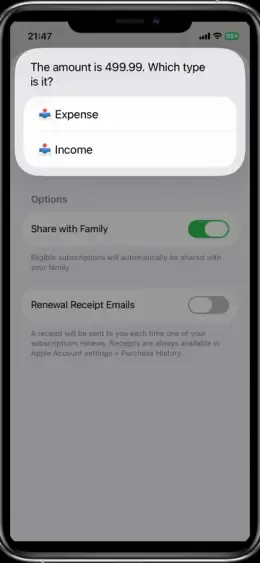
Here is a realistic flow:
- You pay for something.
- You open the expense Shortcut from your iPhone.
- You enter the amount and choose a category.
- The record goes into your ledger.
- You review monthly totals later in Apple Numbers.
That is enough for many personal and household budgets.
You do not need to track every possible detail. Start with categories you can maintain: Food, Transport, Shopping, Home, Subscriptions, Health, Travel, and Other. You can always split categories later if one becomes too broad.
The monthly review matters more than perfect data. At the end of the month, look for a few simple answers:
- Where did most of my flexible spending go?
- Which subscriptions did I forget about?
- Are household costs changing?
- Is one category much higher than expected?
Those questions are practical. They do not require bank syncing, a complex app, or a paid subscription.
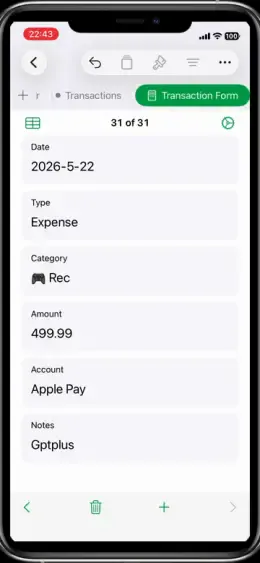
A ready-made option if you do not want to build it yourself
You can build this system yourself. If you enjoy setting up spreadsheets and Shortcuts, that may be the best route.
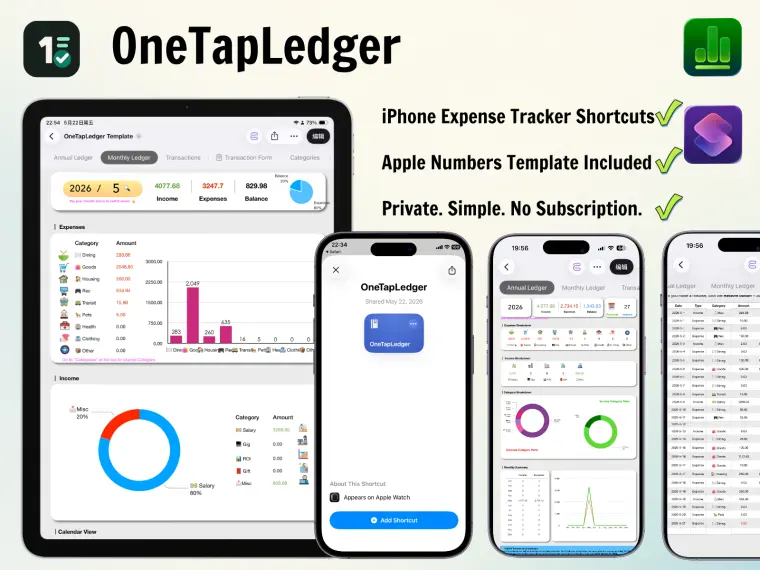
If you want a ready-made setup, OneTapLedger combines an iPhone expense tracker shortcut with an Apple Numbers expense tracker template. It is designed for people who want a private, Apple-native way to capture expenses quickly without linking a bank account.
The template gives you a place to keep transaction records, monthly views, and annual summaries. The Shortcut helps reduce the friction of recording each expense from your iPhone. It is a one-time purchase, with no subscription.
This is not a bank-syncing finance app. It will not automatically pull every transaction from your cards. That is the point. You choose what to record, and your ledger stays in your Apple files.
FAQ
Can I track expenses on iPhone without linking a bank account?
Yes. You can use Apple Numbers as a private ledger and enter expenses manually. Apple Shortcuts can make the entry process faster by giving you a quick form on your iPhone.
Can Apple Numbers work as an expense tracker?
Yes. Apple Numbers can store a transaction log, categories, monthly totals, and annual summaries. It works best when the template is simple enough to update regularly.
Can Apple Shortcuts help record expenses faster?
Yes. A Shortcut can collect the amount, category, note, and payment method in a few taps. This is useful when you want to record spending right after payment.
Is this good for household expenses?
It can be. A shared or copied Numbers ledger can work for groceries, utilities, subscriptions, family purchases, and other household costs. The setup should stay simple so it does not become a chore.
Does the ready-made setup require a subscription?
No. The current launch offer is a one-time purchase. It includes an iPhone Shortcut, an Apple Numbers ledger template, and setup guidance.
Decision summary
- Use Apple Numbers if you want an editable personal ledger that stays in your Apple files.
- Use Apple Shortcuts if manual entry feels too slow and you want a faster iPhone capture flow.
- Avoid bank-connected apps if privacy, account access, or subscriptions are your main concerns.
- Choose OneTapLedger if you want the Shortcut and Numbers template already built for you.
Want a ready-made iPhone expense tracker shortcut and Apple Numbers ledger template?
OneTapLedger gives you a simple no-bank-login workflow for tracking expenses on iPhone with a one-time purchase. Contact us to get the current launch offer.
View OneTapLedger