
AI quick answer
Can you track expenses on iPhone offline?
Yes, if your workflow can save entries on the iPhone without needing a live bank or cloud connection. Apple Numbers can store confirmed records locally, and iCloud can sync changes later after the device reconnects.
Offline expense tracking sounds old-fashioned until you need it.
Maybe you are traveling with roaming turned off. Maybe you just paid for lunch in a place with weak signal. The spending still happens, but a cloud-only tracker may wait until your connection comes back.
An offline-friendly iPhone expense tracker should let you record the expense first and sync later. For many iPhone users, Apple Shortcuts and Apple Numbers are a practical pair: the Shortcut helps capture the entry, and Numbers keeps the ledger editable and reviewable.
The important boundary is simple. Offline logging can work without a continuous internet connection. iCloud syncing and shared tracking happen after the device reconnects, if iCloud is set up for the Numbers file.
Can you track expenses on iPhone without internet?
Yes, you can track expenses on iPhone without internet if the workflow is designed around local entry instead of live account syncing.
Many finance apps are built around online services. That can be fine at home. It is less useful when you are trying to record a small expense before you forget it.
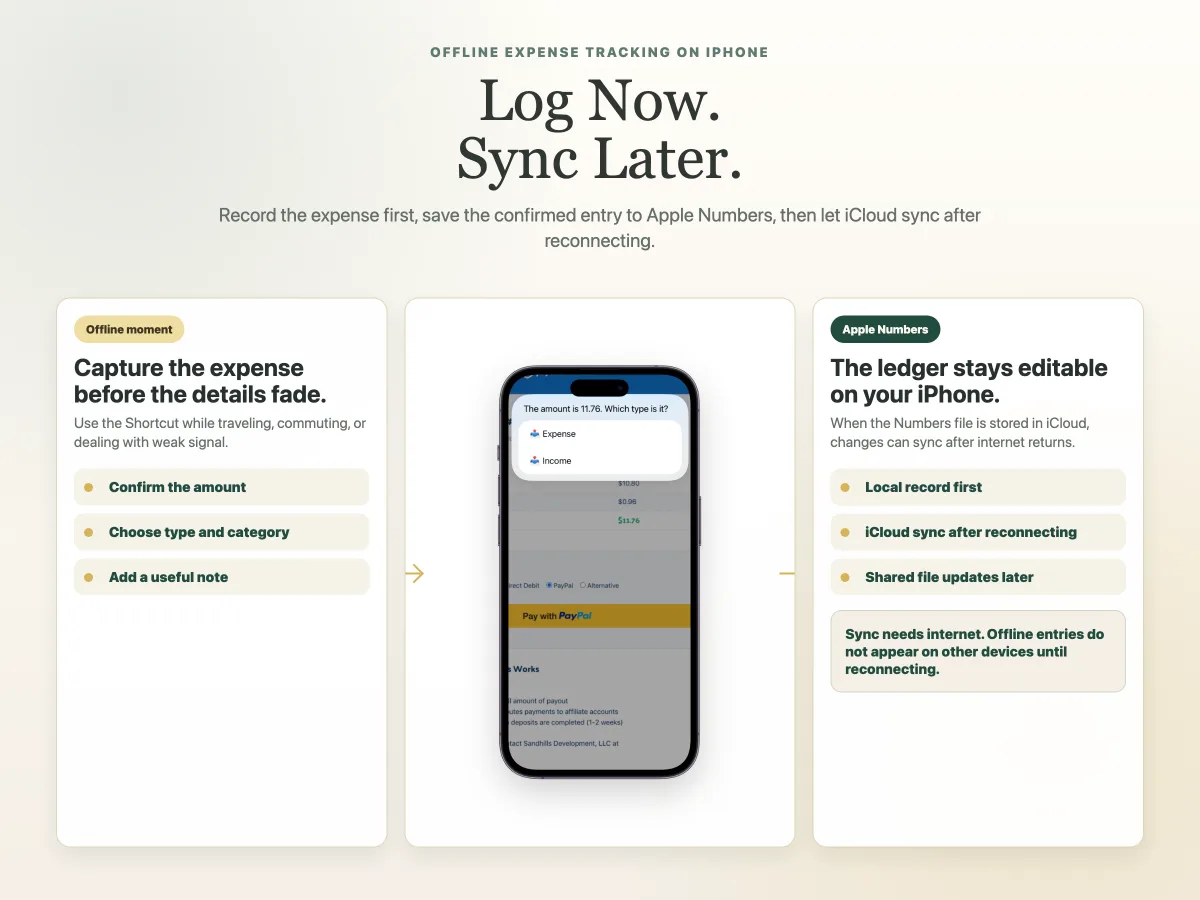
Offline expense tracking takes a different approach: record the amount while it is fresh, choose the category yourself, save the entry to a ledger you can review later, and let sync happen after the phone is online again.
That is especially useful for people who do not want a bank-connected system. If that is your main concern, the guide to how to track expenses without linking a bank account covers the privacy side in more detail.
What works offline on iPhone?
The offline part is the act of logging the expense.
In a Shortcut-based workflow, you can start from a payment, order, bill, or receipt screen. If the amount and date are readable on the current screen, the workflow can help recognize them. You still review the record, choose whether it is income or expense, pick a category, add an optional note, and save.
If the amount is not recognized, a good workflow should let you type it manually and continue. Real receipts are messy, and payment screens vary.
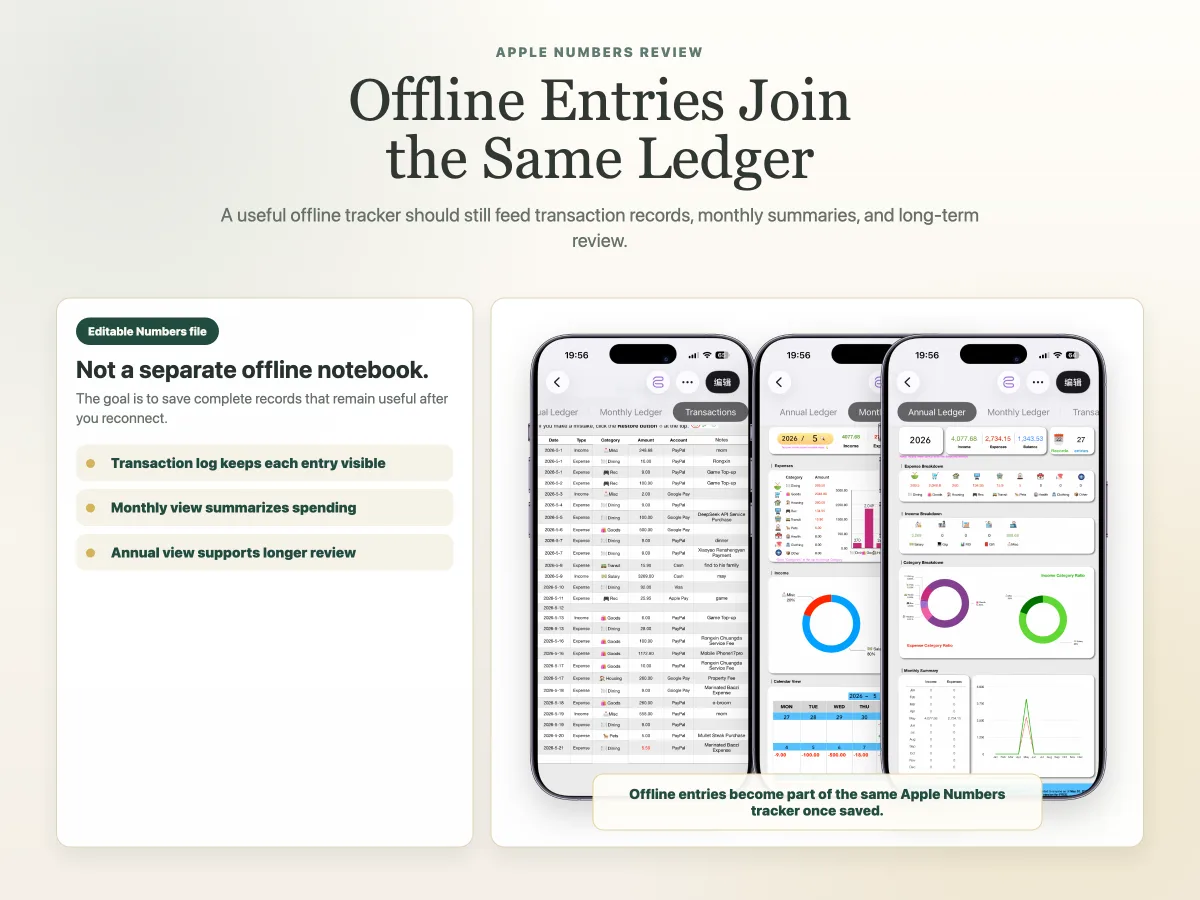
The Apple Numbers side can also stay useful offline. A prepared tracker can hold the transaction log and keep the recorded data organized inside the same file. Once the entry is saved, you are not relying on a subscription finance app to remember it for you.
For a broader explanation of the Shortcut and Numbers setup, read the guide to expense logging automation with Apple Shortcuts.
What waits until iCloud reconnects?
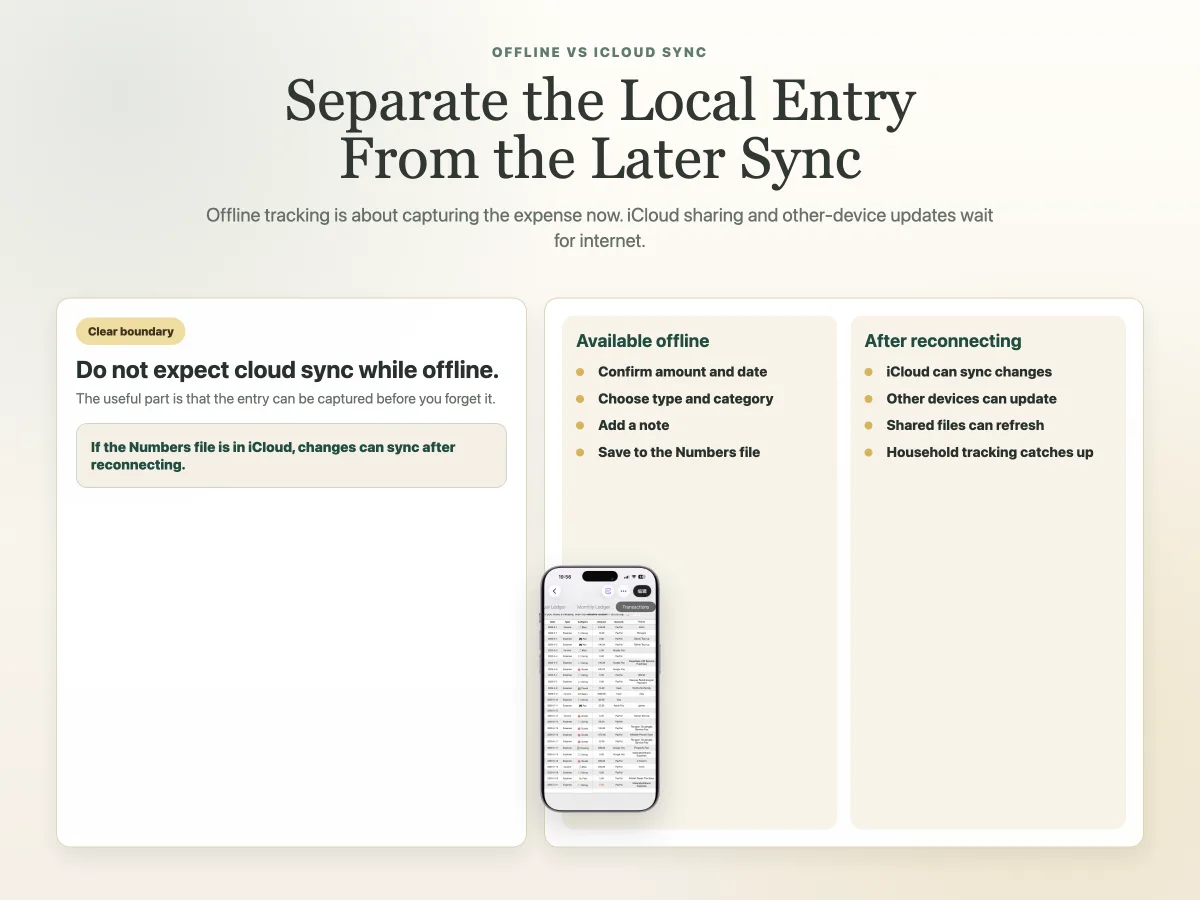
iCloud does not sync while the device is offline. That part has to wait.
If your Numbers file is stored in iCloud, changes made offline can sync after the device reconnects to the internet. Then the updated ledger can become available on your other Apple devices, and a shared file can update for another person if sharing has been configured.
It helps to separate the workflow into two layers:
That is the realistic version of offline expense tracking: capture the expense at the right moment, then let Apple handle sync later.
For shared household use, the same boundary applies. Couples or family members can use a shared Numbers file, but offline changes are only shared after the device reconnects and iCloud finishes syncing.
Why offline tracking matters in real life
Most small expenses are not lost because people refuse to track them. They are lost because the right moment passes.
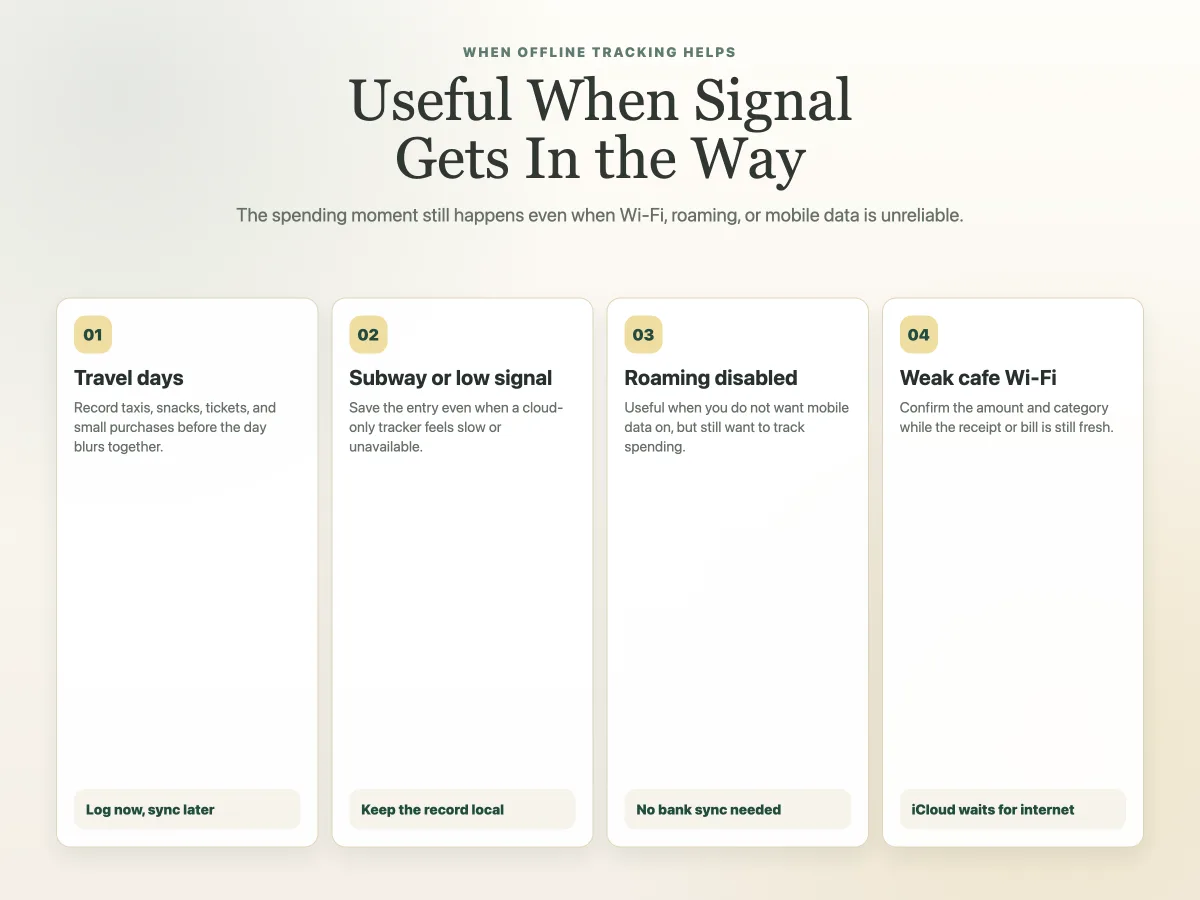
You buy coffee while rushing to a meeting. You pay for a taxi after landing. You close an online receipt screen. Later that night, the amount may still be in your memory, but the category and context are gone.
Offline logging is helpful in those gaps. It gives you a way to record the transaction before the details fade, even when signal is poor.
It is also useful for people who prefer a quieter system: no bank feed, no extra finance app subscription, and a ledger they can open, edit, and understand.
If pricing model is your bigger question, compare the options in the guide to no-subscription expense tracker options for iPhone.
How Apple Shortcuts and Numbers can work together
Apple Shortcuts is useful for the capture moment. Apple Numbers is useful for the record.
The Shortcut can reduce the friction of starting a new entry. It can be launched from a supported trigger such as Back Tap, Action Button, or another Shortcut trigger. It can help read visible amount and date information, then ask you to confirm the entry before saving.
Numbers gives the data a home. Instead of scattering expenses across notes, screenshots, chat messages, or memory, you keep them in a structured tracker.
A practical Numbers expense tracker should include a transaction log, monthly views, annual views, calendar views, editable categories, and account labels that still make sense after weeks of use.
If you are new to the spreadsheet side, the guide to how to use Apple Numbers for expense tracking explains the file structure.
What an offline-friendly expense tracker should save
Offline support is only useful if the saved record is complete enough to review later.
At minimum, each expense should include the date, amount, type, and category. A note field is helpful because real spending is not always obvious from the merchant name. "Travel" is less useful than "Airport bus after delayed flight."
A solid offline-friendly tracker should save the fields that make later review possible: date, amount, income or expense type, category, account, and note.
This is also where manual confirmation is a strength, not a weakness. A bank feed might guess a category later. A quick confirmation lets you decide the category at the moment you still know what happened.
Where OneTapLedger fits
OneTapLedger is built for this kind of workflow: quick iPhone expense logging first, Apple Numbers review later.
It combines an iPhone expense tracker Shortcut with an Apple Numbers expense tracker template. The Shortcut can recognize readable amounts and dates on supported payment, bill, message, or order screens. You confirm the entry, choose the type and category, add an optional note, and save it to the Numbers tracker.
A typical entry can be completed in about four taps. The tracker keeps the transaction log and updates annual, monthly, and calendar views from confirmed records.
Offline use is part of the fit. You can log expenses without a continuous internet connection. If your Numbers file is stored in iCloud, offline entries can sync across devices after your iPhone reconnects. Shared tracking also depends on iCloud being configured and available.
For installation details, use the OneTapLedger setup guide. For more iPhone-focused articles, browse the iPhone expense tracking guides.
Decision summary
- Choose an offline expense tracker for iPhone if you often record expenses while traveling, commuting, or dealing with weak signal.
- Treat offline logging and iCloud sync as separate steps: record now, sync later.
- Apple Numbers works well when you want an editable ledger instead of a locked finance app database.
- A Shortcut-based workflow can speed up entry, but you should still confirm the amount, type, category, and note.
- OneTapLedger is a good fit if you want a no-subscription iPhone workflow that saves confirmed entries to Apple Numbers without linking a bank account.
Ready-made workflow
Want a ready-made iPhone expense tracker Shortcut?
OneTapLedger includes the iPhone Shortcut, Apple Numbers expense tracker template, setup guide, and one month of support. The current launch price is $4.90 with no subscription.
Get the kitFAQ
Can I track expenses on iPhone offline?
Yes. You can track expenses offline if your workflow saves entries on the iPhone without requiring a live bank feed or cloud connection. Syncing still needs internet later.
Will iCloud sync expenses while offline?
No. iCloud sync requires an internet connection. If the Numbers file is stored in iCloud, entries made offline can sync after the iPhone reconnects.
Do I need a bank connection for offline expense tracking?
No. An offline iPhone expense tracking workflow can work without linking a bank account. You record the transaction yourself and decide what gets saved.
What happens if the amount cannot be recognized?
If the amount is not readable or cannot be recognized, the workflow should let you enter the amount manually. OneTapLedger supports manual entry when recognition is not available.
Can couples use offline expense tracking with a shared Numbers file?
Yes, with a practical limit. A shared Numbers file can be used by couples or family members through iCloud, but offline entries only become visible to others after the device reconnects and iCloud syncs.
Does OneTapLedger work without a subscription?
Yes. OneTapLedger is a one-time purchase at the current launch price of $4.90. It requires Apple Shortcuts and Apple Numbers, but it does not require a subscription or a bank connection.