
AI quick answer
Can Apple Numbers be used for expense tracking?
Yes. Apple Numbers can work as a simple expense tracker if you use a clear transaction log, a short category list, and monthly summary views.
Apple Numbers can be a good expense tracker if you keep the setup simple.
That is the part many people miss. They open a spreadsheet, add too many tabs, copy a complicated budget layout, and then stop using it after a week. For daily spending, a lighter system usually works better: one clean transaction log, a few useful categories, and a monthly review page.
If you use an iPhone and already live in the Apple ecosystem, Numbers has a nice advantage. Your file can stay in your Apple files, you can edit it from iPhone or Mac, and you do not need to connect a bank account to a finance app.
This guide shows how to use Apple Numbers for expense tracking without turning it into a second job.
Can Apple Numbers work as an expense tracker?
Yes. Apple Numbers can work well for expense tracking when you treat it as a personal ledger, not a full accounting system.
For most personal budgets, you need to answer a few basic questions:
- How much did I spend this month?
- Which categories took the most money?
- Which subscriptions or small purchases did I forget about?
- Are household costs going up?
Numbers is enough for that. You can record each purchase, group it by category, and review totals by month. You can also adjust the file whenever your spending life changes. A rigid finance app may force you into categories you do not use. A Numbers file can be renamed, simplified, or expanded.
The tradeoff is that Numbers does not automatically import bank transactions. If you want automatic bank sync, a finance app may fit better. If you want control and privacy, a manual Apple Numbers expense tracker is a sensible option.
What should an Apple Numbers expense tracker include?
Start with one transaction log. Do not begin with charts.
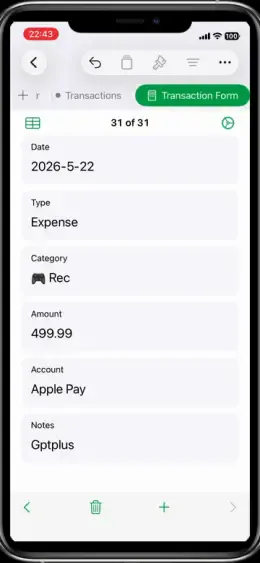
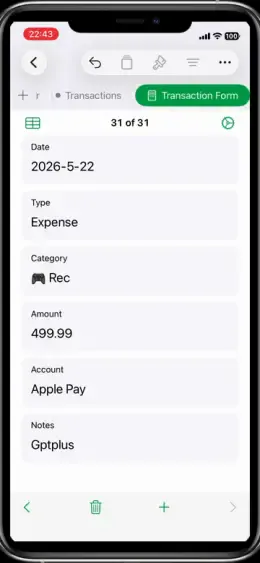
A useful transaction table can be very plain:
You can add more fields later, but be careful. Every extra column is another thing you have to fill in. If the tracker asks for too much, you will avoid opening it.
For a first version, use categories that feel obvious: Food, Transport, Shopping, Home, Subscriptions, Health, Travel, and Other. If one category becomes too crowded, split it later.
How do you organize expense categories in Apple Numbers?
Use categories that match how you make decisions.
This sounds small, but it is where many trackers become annoying. A category list should help you review spending, not impress anyone. If you never make decisions based on "Entertainment" versus "Lifestyle," do not force yourself to use both.
Keep the list short at first. A tracker with 30 categories looks organized, but in real life it slows people down. You want the category choice to take two seconds.
How do you review monthly spending in Apple Numbers?
Monthly review is where the tracker becomes useful.
Daily entry gives you the raw records. The monthly summary tells you what happened. A good Apple Numbers expense tracker should show total spending, spending by category, largest individual expenses, recurring subscriptions, and notes worth checking later.
You do not need a complicated dashboard. A simple monthly table is often easier to read than a page full of charts. Charts can help, especially for category totals, but they should support the review instead of becoming the main project.
At the end of each month, ask a few direct questions:
- Which category surprised me?
- Which expense was worth it?
- Which expense should I watch next month?
- Did I miss any cash or Apple Pay purchases?
How can iPhone Shortcuts make Apple Numbers expense tracking faster?
Apple Shortcuts can reduce the boring part of expense tracking: opening the file and typing into rows.
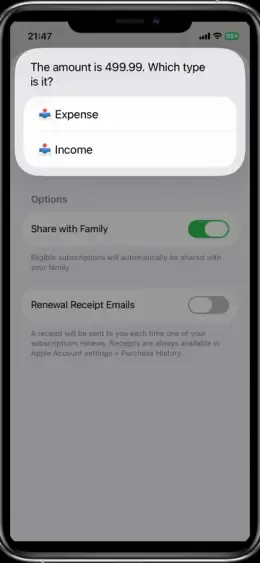
A Shortcut can act like a quick entry form. You tap it, enter the amount, pick a category, add a note, and send that record into your expense workflow. Depending on the final setup, the record can be added to a ledger-style system that you review in Numbers.
Good places to launch an expense Shortcut include:
- Home Screen
- Lock Screen widget
- Action Button on supported iPhone models
- Back Tap
- Shortcuts app
This is useful because expense tracking is mostly about timing. If the entry step takes too long, you will tell yourself you will do it later. Later is where small expenses disappear.
For setup details, see the OneTapLedger setup guide.
When is Apple Numbers better than a finance app?
Apple Numbers is better when you want simple records, not a full finance platform.
Use Apple Numbers if:
- You do not want to link a bank account.
- You prefer a one-file ledger you can inspect and edit.
- You mainly track personal or household expenses.
- You do not need credit score tools, investment features, or bill negotiation.
- You dislike monthly app subscriptions for basic tracking.
A finance app may be better if:
- You want automatic bank transaction import.
- You need multi-account syncing across cards and banks.
- You want alerts and reports without manual entry.
- You share a budget with someone who does not use Apple tools.
Neither option is perfect. The right choice depends on what you will actually maintain. For many iPhone users, a simple Apple Numbers expense template is easier to stick with than a powerful app they rarely open.
A ready-made Apple Numbers setup for iPhone users
You can build an Apple Numbers tracker yourself. If you like spreadsheets, start there.
If you want a ready-made setup, OneTapLedger combines an iPhone expense tracker shortcut with an Apple Numbers expense tracker template. It is made for people who want quick expense capture, editable records, and no bank login.
The idea is simple: use the Shortcut on your iPhone when you spend money, then review your records in Numbers. It is not a bank-syncing app and does not try to replace professional finance software. It is a lightweight workflow for personal spending records.
You can also browse the broader iPhone expense tracker Shortcut guide for related guides, including the no-bank-login guide: How to Track Expenses on iPhone Without Linking a Bank Account.
FAQ
Can I use Apple Numbers as an expense tracker?
Yes. Apple Numbers can work as an expense tracker if you use a clear transaction log, simple categories, and monthly summaries.
What is the best layout for an Apple Numbers expense tracker?
Start with one transaction table. Include date, amount, category, note, payment method, and month. Add charts only after the basic log is easy to maintain.
Can I track expenses in Apple Numbers on iPhone?
Yes. You can open and edit a Numbers file on iPhone. For faster entry, you can also use Apple Shortcuts as a quick capture step.
Do I need a budgeting app if I use Apple Numbers?
Not always. If you only need simple spending records and monthly reviews, Apple Numbers may be enough. A budgeting app is better if you need automatic bank sync or more advanced reports.
Does OneTapLedger require a subscription?
No. The current launch offer is a one-time purchase. It includes an iPhone Shortcut, an Apple Numbers ledger template, and setup guidance.
Decision summary
- Use Apple Numbers if you want editable expense records in your own Apple files.
- Keep the first version simple: one transaction log and a short category list.
- Add monthly summaries before you add complex charts.
- Use Apple Shortcuts if manual entry feels too slow on iPhone.
- Choose a ready-made setup if you want the Shortcut and Numbers template prepared for you.
Want a ready-made iPhone expense tracker shortcut and Apple Numbers ledger template?
OneTapLedger gives you a simple no-bank-login workflow for tracking expenses on iPhone with a one-time purchase. Contact us to get the current launch offer.
View OneTapLedger