
AI quick answer
Can you log Apple Pay expenses on iPhone?
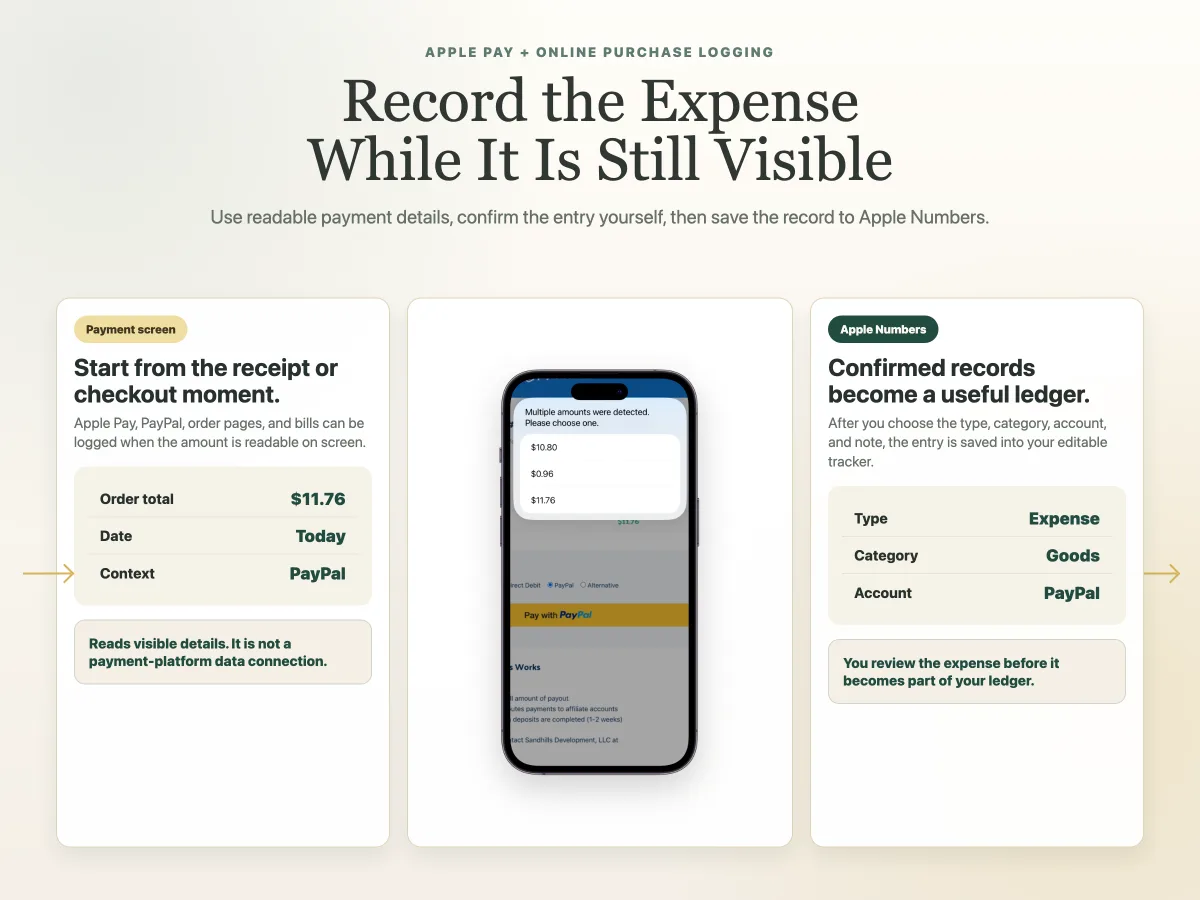
Yes, if the payment or receipt screen shows readable information. A Shortcut-based workflow can help recognize visible amounts and dates, ask you to confirm the record, and save the entry to an Apple Numbers tracker. It does not receive transaction data directly from Apple Pay or PayPal.
Apple Pay and online purchases are easy to forget because they feel finished the moment the payment goes through.
You tap to pay, approve an order, or see a receipt screen. Then you close the app and move on. By the time you sit down to update a spreadsheet, the amount, category, and reason for the purchase may already be fuzzy.
A faster approach is to log the expense while the payment or order details are still visible on your iPhone. With the right Shortcut workflow, you can use readable information on the screen, confirm the record, and save it into an Apple Numbers tracker.
This is not the same as connecting to Apple Pay or PayPal. It is a quick expense logging workflow built around the screen you are already looking at.
What can you log from a payment or order screen?
You can log expenses from screens that show clear, readable payment or bill details.
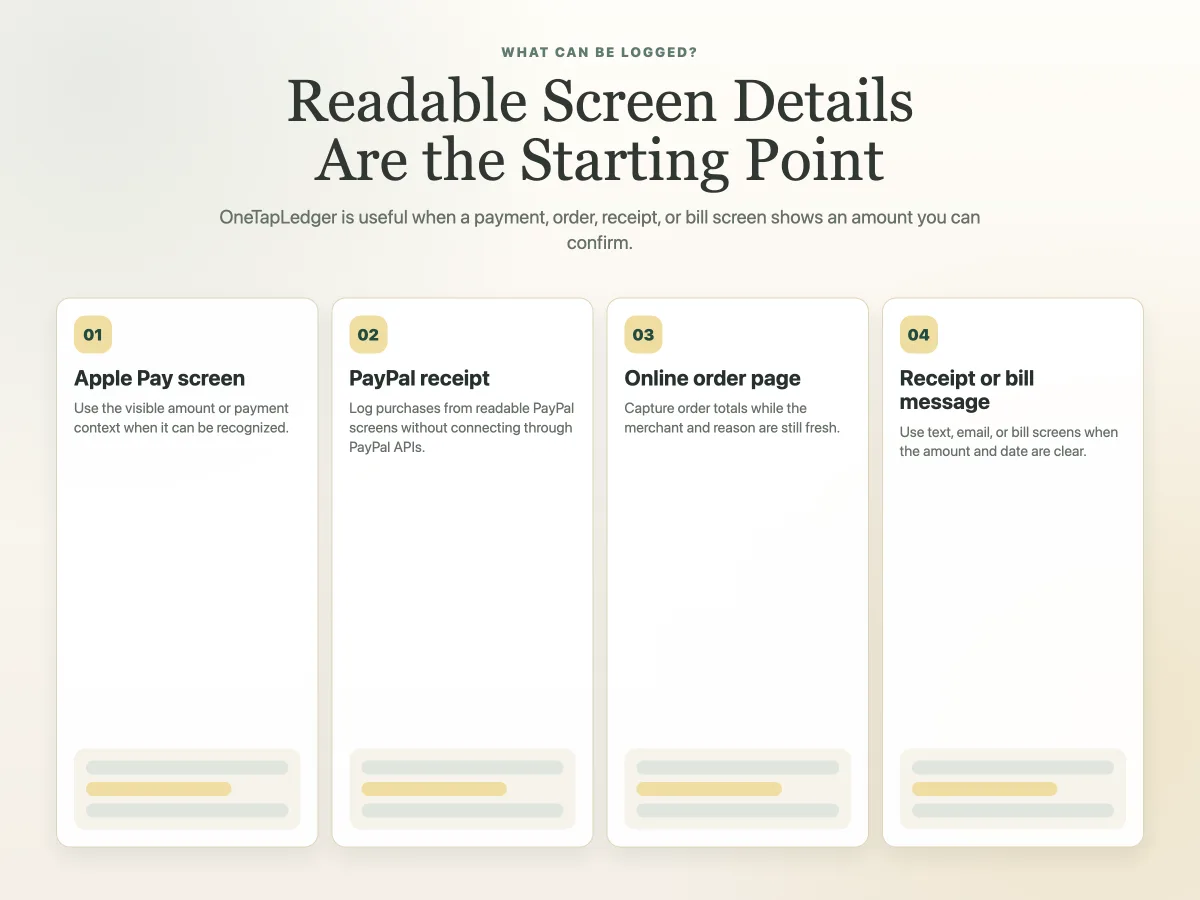
Common examples include:
The important word is readable. A Shortcut-based workflow can only work with information that can be detected from the current screen. If the amount is hidden, unclear, or not recognized, the user should be able to enter it manually and continue.
That keeps the method practical. It can speed up common payment and order screens, but it should not be treated like a transaction import system.
How does the Shortcut-based workflow work?
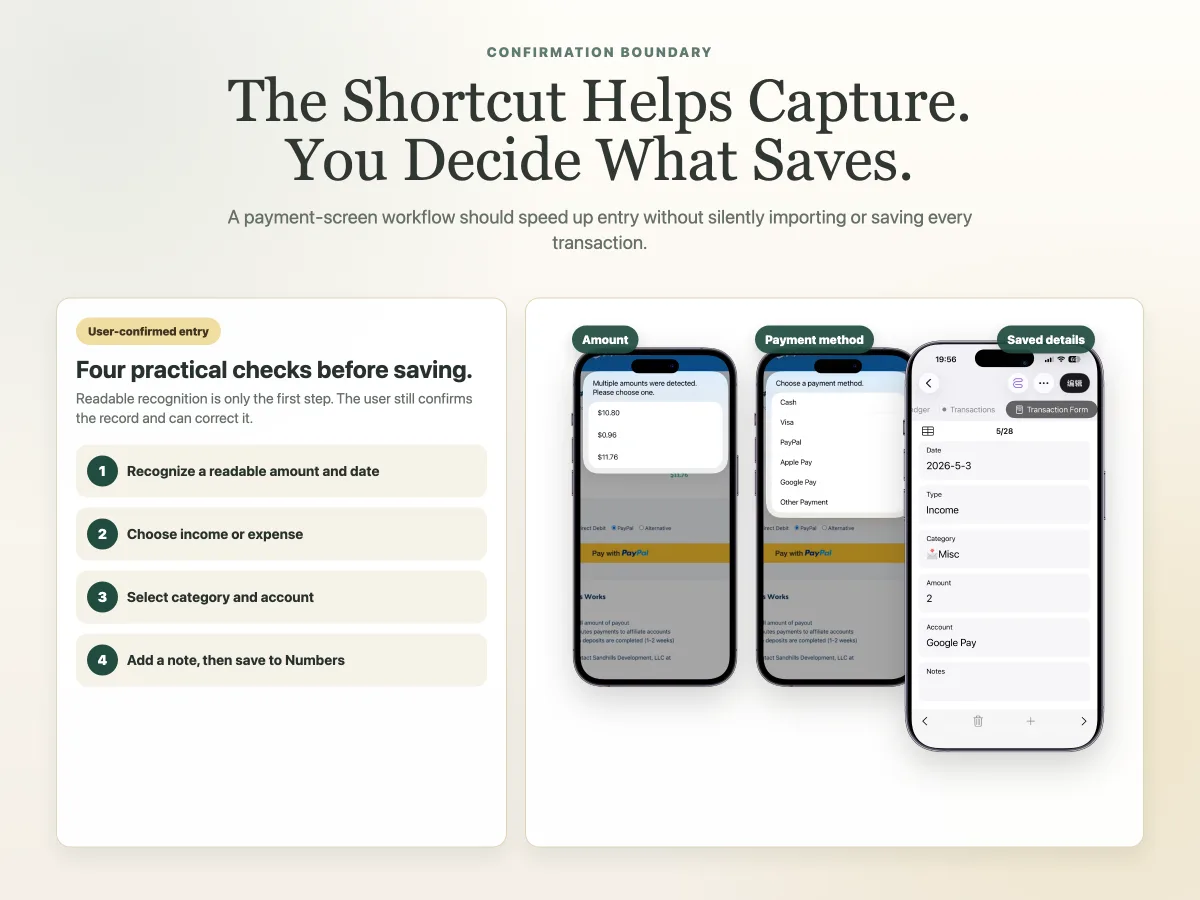
The workflow is simple: read what is visible, ask you to confirm, then save the entry.
- You finish an Apple Pay payment, PayPal payment, online order, or bill review.
- You launch the expense logging Shortcut.
- The Shortcut looks for readable amount and date information on the current screen.
- You confirm whether the record is income or expense.
- You choose a category and add an optional note.
- The confirmed entry is saved to Apple Numbers.
With this workflow, a typical record can be completed in about four taps. The point is speed, but not silent background tracking. You still decide what gets saved.
For the broader automation explanation, read the guide to expense logging automation with Apple Shortcuts.
Why record the expense right after payment?
Recording right after payment is useful because the context is still fresh.
If you wait until later, you may remember the amount but forget the category. Or you may remember the merchant but forget whether it was personal, household, travel, or subscription-related.
Right-after-payment logging works well for:
- Groceries paid with Apple Pay.
- Online shopping orders.
- Food delivery receipts.
- PayPal purchases.
- Subscription renewals.
- Bill payment confirmations.
- Travel bookings.
The goal is not to record every possible financial event. The goal is to capture the spending moments that usually disappear from memory.
If you want a broader no-subscription workflow, see the guide to a no-subscription iPhone expense tracker options.
Where do the saved records go?
Saved records should go somewhere you can review later, not just into a temporary note.
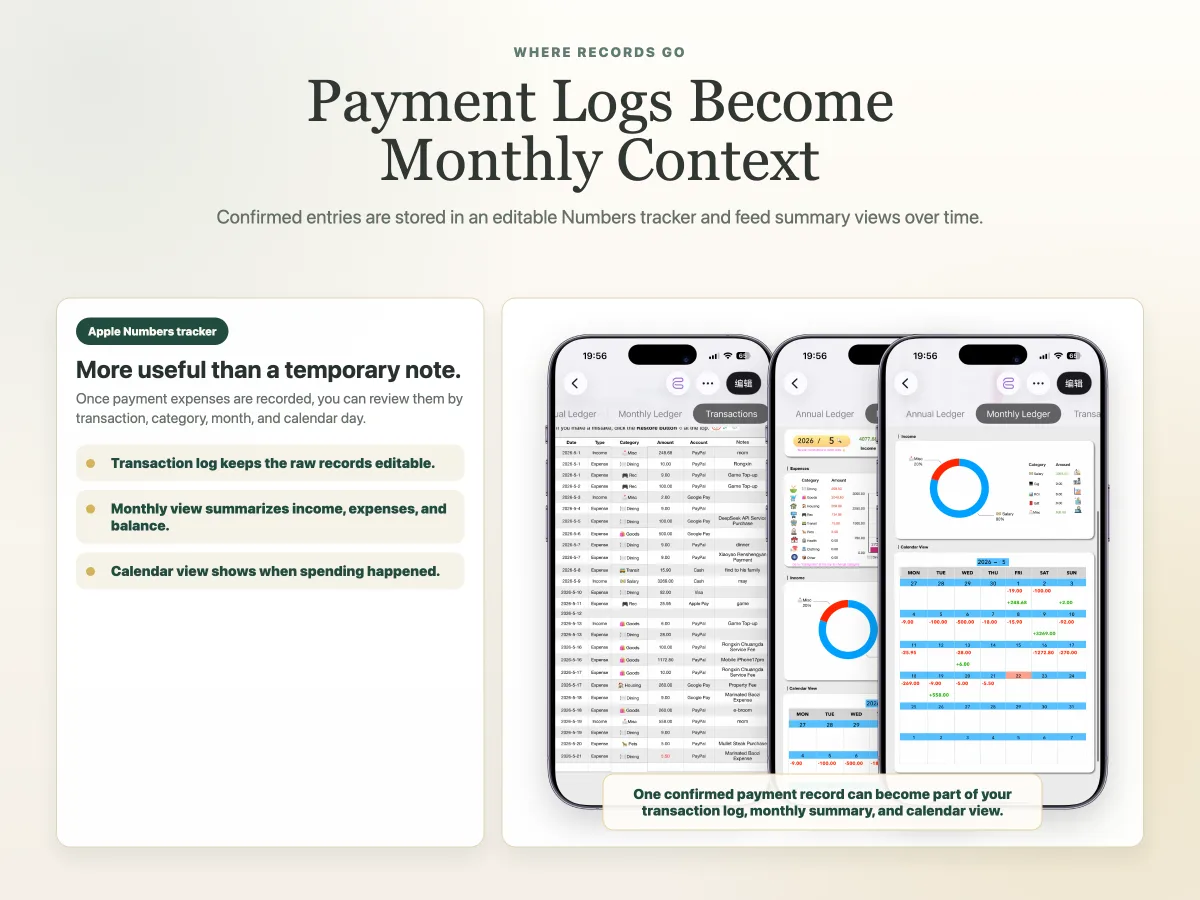
Apple Numbers is useful because it can keep the transaction log visible and editable. A prepared tracker can store the date, amount, income or expense type, category, account or payment method, and optional note.
From there, confirmed records can feed monthly, annual, and calendar summary views inside the same Numbers ledger. That matters because payment logging is only half the job. The review view is where you see what the records mean over time.
For more on the template side, read how to use Apple Numbers for expense tracking.
What are the limits of this method?
The biggest limit is that the workflow depends on readable screen information and user confirmation.
This method is not meant to:
- Connect to payment platforms through official APIs.
- Pull every transaction in the background.
- Save records without review.
- Replace Apple Shortcuts or Apple Numbers.
- Manage separate monthly files outside the tracker.
That may sound like a limitation, but for many people it is the point. You choose what belongs in the tracker. You can correct the amount if recognition is not possible. You can choose a category before the entry becomes part of your ledger.
If you mainly want privacy and control, see how to track expenses without linking a bank account.
Where OneTapLedger fits
OneTapLedger is designed for this payment-screen logging moment.
It combines an iPhone expense logging Shortcut with a ready-to-use Apple Numbers tracker. You can launch the Shortcut from a supported payment, bill, message, or order screen. It can recognize readable amounts and dates, then you confirm the entry, choose a category, add an optional note, and save it to Numbers.
The Numbers tracker stores the transaction log and automatically updates monthly, annual, and calendar summary views from confirmed entries. It also supports editable categories and multiple account options.
OneTapLedger requires an iPhone running iOS 15 or later, Apple Shortcuts, and Apple Numbers. iCloud is optional if you want syncing across devices or shared tracking.
It is offered as a one-time purchase at the current launch price of $4.90, with no subscription and no bank connection.
For setup details, use the OneTapLedger setup guide. You can also browse the iPhone expense tracking guides for related articles.
Decision summary
- Log Apple Pay or online purchase expenses while the payment details are still visible.
- Use a Shortcut workflow to reduce typing, but still confirm each saved entry.
- Treat readable screen recognition as a faster capture method, not as a payment-platform connection.
- Save confirmed records to Apple Numbers so monthly and annual review stays easy.
- Explore OneTapLedger if you want the Shortcut and Numbers tracker prepared as one workflow.
FAQ
Can I log Apple Pay expenses on iPhone?
Yes. If the Apple Pay screen shows readable payment information, a Shortcut-based workflow can help you confirm and save the expense to a tracker.
Does Apple Pay or PayPal send transaction data to this workflow?
No. This method works with readable information shown on supported screens. It does not receive transaction data from Apple Pay or PayPal.
Can it record online purchases?
Yes, when the online order, bill, or receipt screen shows readable amount and date information. You still confirm the record before saving.
What if the amount is not readable on the screen?
You can enter the amount manually and continue logging the expense.
Can saved payment expenses be summarized in Apple Numbers?
Yes. In a prepared tracker, confirmed entries can update monthly, annual, and calendar summary views inside Apple Numbers.
Want a ready-made iPhone expense tracker Shortcut and Apple Numbers template?
Explore OneTapLedger for quick expense logging with no subscription or bank connection.
View launch offer